API Setup
You need to set up a Connected App, API User and Permission Set to use APIs with Sage.
-
An API User is a dedicated user account you create specifically for API interactions. It has the necessary permissions to access and retrieve data without requiring manual intervention
-
A Permission Set provides necessary object and field permissions to the API
-
An External Client App is a secure integration that allows external applications to communicate with Sage People. It ensures proper authentication and access control. This enables data exchange between systems and acts as a bridge between Sage People and third-party systems
Together, these components are essential for enabling automated, secure communication between third-party systems and Sage People. They ensure flows efficiently and without disruption.
Resolution
Step 1 - Create the API User
-
Create a new user for API access using the Salesforce Integration License Type and Minimum Access – API Only Integrations Profile.
-
Temporarily record the Username, Password, Token, and Security Answer for reference.
-
Assign the Permission Set to the API user.
Step 2 - Create the Permission Set
Create a new Permission Set and assign this to the user you configured earlier. Ensure it includes View All access for the objects in scope of your API. You need to add all fields the API accesses to the Permission Set with Read Only access.
Step 3 - Create External Client App
Salesforce recently updated the process for creating integration apps, introducing a distinction between app types. These are Connected Apps and External Client Apps. Rather than creating a External Client App as you before, you will now use the new External Client App Manager page to set up an External Client App.
-
Go to Setup and select External Client App.
-
Open External Client App Manager and configure the following:
-
External Client App Name = An appropriate name for the App
-
Contact Email = Primary contact email address
-
-
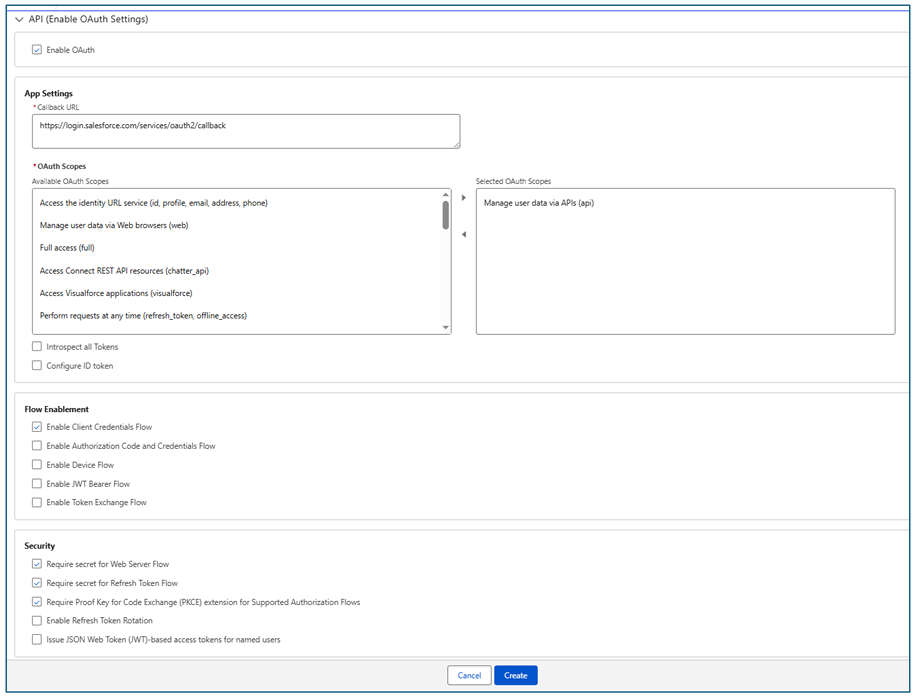
Leave all other settings as they are, then expand API (Enable OAuth Settings):
-
Enable OAuth Setting = True
-
Callback URL = https://login.salesforce.com/services/oauth2/callback
-
OAuth Scope = Manage user data via APIs
-
Enable Client Credentials Flow = True
-
-
Leave all other settings as they are, then click Create.
-
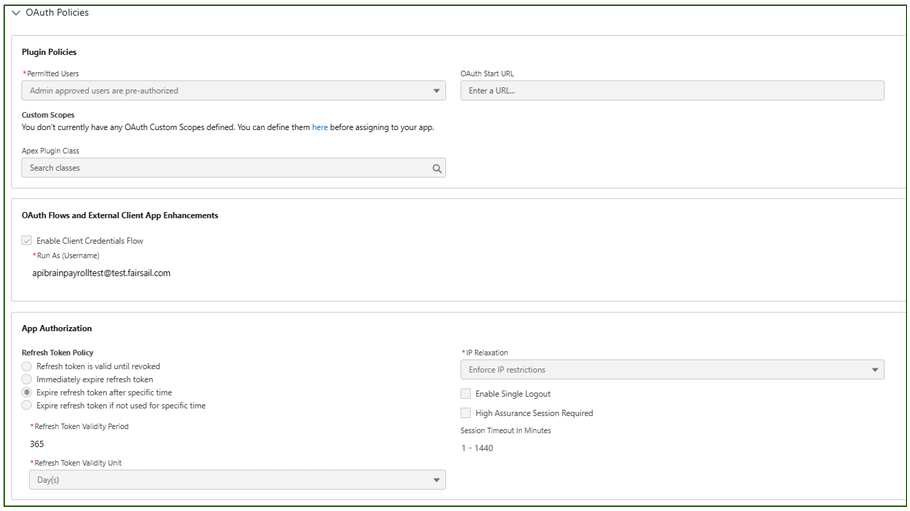
Open the Policies tab and expand OAuth Policies.
-
Click Edit and update:
-
Permitted Users = Admin approved users are pre-authorized
-
Enable Client Credentials Flow = True
-
Run As (Username) = Full username of API user (for example, [email protected])
-
IP Relaxation = Relax IP restrictions
-
Run As (Username)
This determines the access level for the integration, based on that user’s object and field permissions. The specified user must have a verified email address for the field to accept the input.
Use the dedicated API user integration user you created earlier to maintain clear, controlled access.
Refresh Token Policy
The External Client App contains a default setting for Refresh Token Policy. For example, Expire refresh token after a specific time.
OAuth Username-Password Flows
In some older Salesforce orgs, Enable OAuth Username-Password Flows can be on by default. Newer orgs typically have this setting disabled by design. You need this setting currently to support the Resource Owner Password Credentials (Password Grant) flow as above. This is the method the integration uses as of June 2025.
Step 4 - Retrieve Client ID & Consumer Secret
-
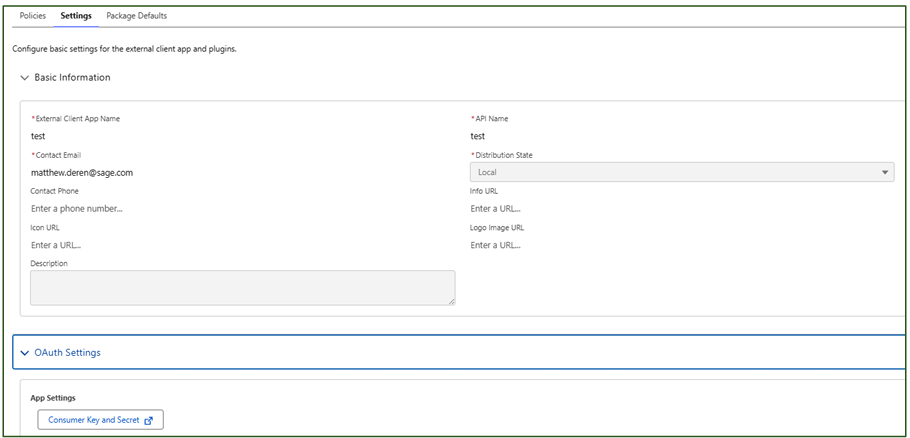
Go to Settings and expand the OAuth Settings section.
-
Click Consumer Key and Secret under App Settings.
-
The system prompts you to confirm your identity.
-
Once you're verified, the system displays the Consumer Key and Consumer Secret.
-
Use these credentials to authenticate the integration with your Sage People org.
-
Record the Client Key/ID and Client Secret, and give them to your API developer.
Step 5 - Verify External Client App via Postman
Postman is a powerful API development and testing tool. It allows users to send requests, analyze responses, and automate API workflows. It provides a user-friendly interface for interacting with APIs without needing to write code manually. Postman is a go-to tool for API testing because it simplifies API validation, speeds up debugging, ensures API consistency, and supports collaboration. It's invaluable for:
-
Verifying API connectivity between third-party systems and Sage People
-
Testing API calls for retrieving employee and payroll data
-
Debugging authentication errors before deploying live integrations
-
Use Postman on the web or your desktop - Postman.com.
-
Create a new collection & name it. For example, customer or trial org.
-
Create a new request to retrieve specific data. For example, Retrieve Team Member.
-
Configure authorization:
-
Auth Type = OAuth 2.0
-
Grant Type = Client Credentials
-
Access Token URL = https://your-org.salesforce.com/services/oauth2/token
-
Client ID & Client Secret = From Connected App
-
Client Authentication = Send as Basic Auth header
-
Select Get New Access Token and confirm authentication
-
-
Execute API Calls.
A successful request will return a 200 OK response along with a response body containing an access_token. The presence of this token confirms that the configuration is correct.
These examples examples the follow standard SOQL format of SELECT, FROM, WHERE.
Query Example 1: Retrieve Employment Record ID and Name
https://your-org.my.salesforce.com/services/data/v62.0/query?q=SELECT Id, Name FROM fHCM2__Employment__c
Query Example 2: Retrieve Team Member ID and Name
https://your-org.my.salesforce.com/services/data/v62.0/query?q=SELECT Id, Name, fHCM2__Current_Employment__r.Id, fHCM2__Current_Employment__r.Name FROM fHCM2__Team_Member__c
Query Example 3: Retrieve Payroll Company for a Specific Team Member Record
https://your-org.my.salesforce.com/services/data/v62.0/query?q=SELECT Id, Name, fHCM2__Current_Employment__r.SPPUK_Payroll_Company__c FROM fHCM2__Team_Member__c WHERE Id = ’Placeholder for Salesforce Record Id of Team Member being queried’