Sage People Community
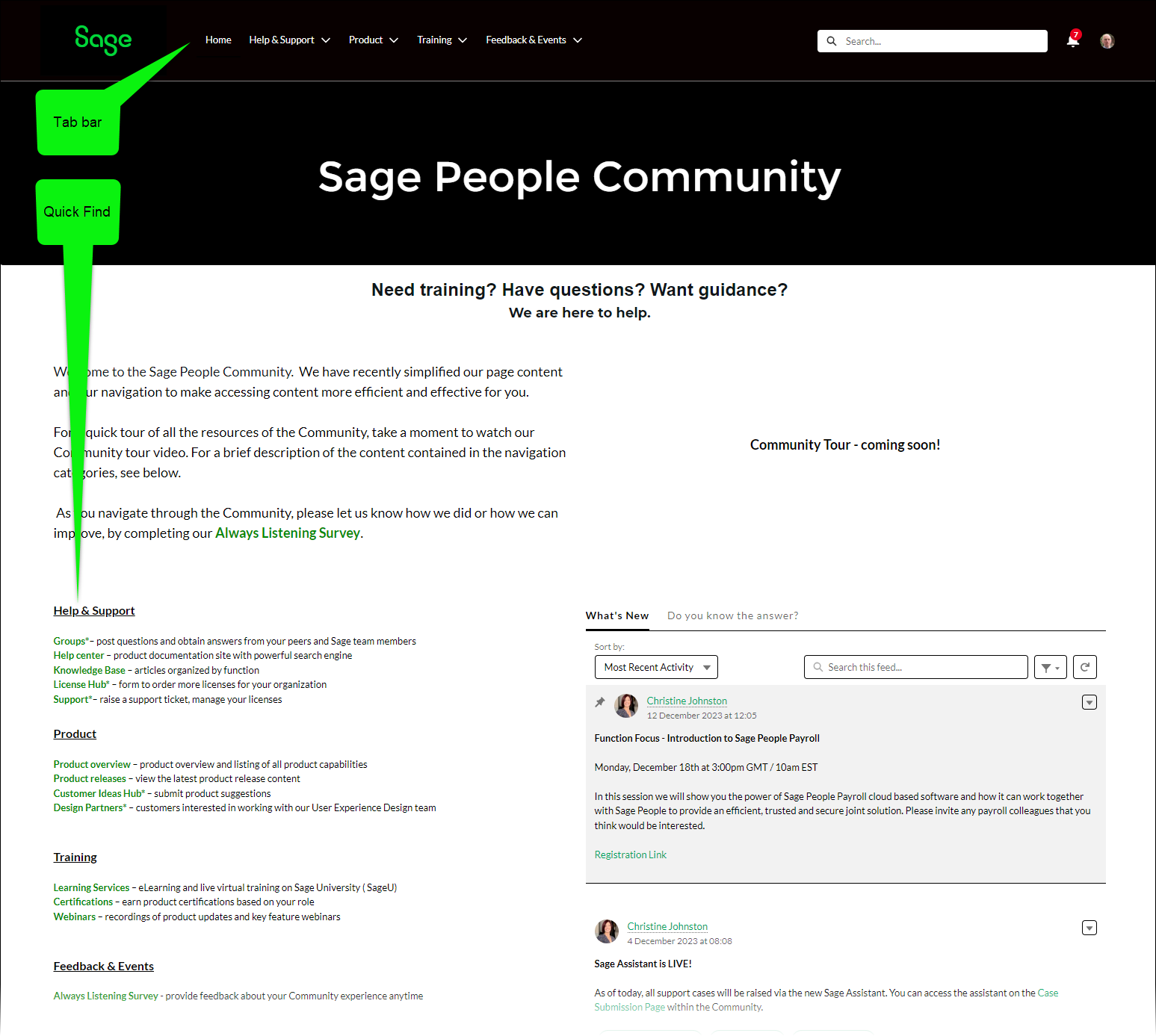
The Sage People Community provides extensive resources for users. Use the Community to find answers, make connections with HR and Salesforce experts, stay up-to-date and share knowledge with Sage People users around the world.
Log in to see the Community home page and to navigate through the site.
Your Community profile
Your Community profile is visible to other Community users. You can supply as much detail as you like, including a profile photo, your professional title, and a few words about yourself. Your profile also displays your Community recognition badges.
Update your profile
-
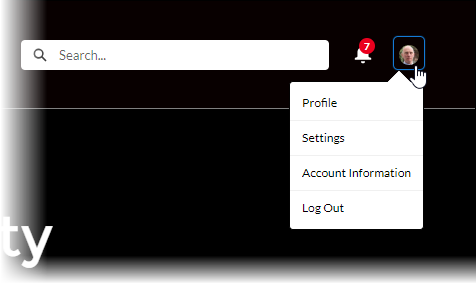
Select your image at the top right of the Home page:
-
From the dropdown menu, select Profile. Your profile displays.
-
To update your photo, select the profile image on the left of the screen. Then select Upload Image. When you're happy with your photo, click Save.
-
To edit your profile details, select Edit.
-
Update your name, title, contact information, and About me.
-
Select Save.
Your Community settings
Your Community settings include your email address, language and location, and your preferences for email notifications.
Update yourSage People Community settings
-
Select your image at the top right of the Home page:
-
From the dropdown menu, select Settings. Your settings display.
-
Edit your email settings, notification preferences, and time zone.
-
Select Save.
Key options
You can select options from the dropdown menus in the tab bar, or directly from Quick Find on the left.

Dropdown menu: Help & Support
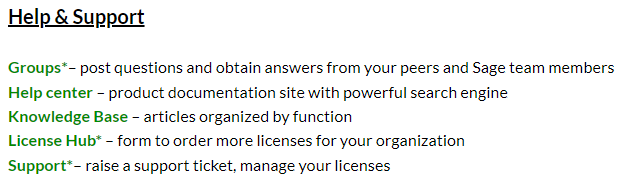
Groups
Connect to your chatter feed, join discussion groups matching your interests and experience. Ask and answer questions and join individual groups to receive direct updates to your inbox. Your questions are visible to other Sage People Community members and employees.
Try these groups:
-
What’s New: the most recent updates
-
Meet & Greet: to introduce yourself and say hello
-
Product releases
Ask the Community a question
-
Select Groups from the Help & Support dropdown menu in the tab bar, or from Quick Find.
-
Check the Groups list to find the group that best describes your need, and select it.
-
Type your question in Share an update....
-
Select Share.
Join a Group
-
Select Groups from the Help & Support dropdown menu in the tab bar, or from Quick Find.
-
Check the Groups list to find the group that best describes your need, and select it.
-
Select Join Group.
-
To choose how often you want to receive group updates, select Weekly digest, Daily digest, or Every post.
Knowledge base
Access Sage People user help, articles, and quick tips organized by functional topic:
-
Absence and leave
-
Compensation
-
Reporting and analytics
-
Engaging users with WX
-
Forms and documents
-
Data management
-
Salesforce knowledge base
-
Talent acquisition
-
Performance and talent management
-
Data integration and Payflow
License hub
Request extra user and administrator licenses for your Sage People org. The License hub offers a self-service license order portal with contract information we personalize and display for you.
To order licenses:
-
Select License hub from the Help & support dropdown menu in the tab bar, or from Quick Find.
-
Under Account Information, select Next to display your account information. This includes the cost of extra user and administrator licenses.
-
Under Order request, select Next.
-
Enter quantities for user and administrator licenses.
The screen tells you if an order quantity doesn't meet the minimum quantities for your contract.
-
Enter the signatory for your organization.
The signatory is the person who authorizes and signs new order contracts and agreements. If you're the signatory, you can proceed without entering your contact information. If the signatory is someone else, provide their contact details.
-
Confirm your order and submit.
When submitting an order, our Orders team sends pricing and other terms to you directly as part of their no obligation quote. You don't receive a separate confirmation email.
To request other items, such as data only licenses, send an email to [email protected]
Support
The Sage People Community is a great source of support. It holds a wealth of resources and knowledge, and you can raise a support case to contact Customer Support for further assistance.
Log a support case
-
Select Support from the Help & support dropdown menu in the tab bar, or from Quick Find.
-
On the Support page, use the Case Submission Form to send the details of your issue to Support.
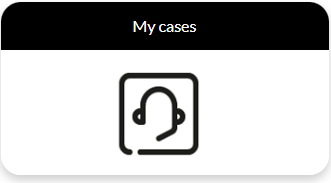
To track the cases you've raised, select the My Cases tile:
Dropdown menu: Product
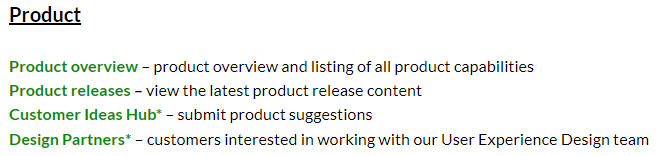
Product releases
-
Details and release notes for Sage People’s most recent product release
-
Plans for future releases
-
Release webinars
-
A full archive of Sage People release notes
Dropdown menu: Training
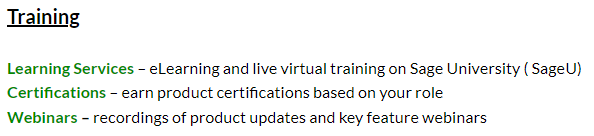
Learning Services
-
eLearning course information
-
A link to SageU to check content
Webinars
-
Function Focus series
Links to recordings of our ongoing series of Function Focus webinars to expand your knowledge on targeted functionality
-
Release Webinar series
Links to recordings of our latest release webinars to keep you up-to-date