Assigning permissions to system administrators
Salesforce no longer grants system Administrators automatic access to all features following recent changes to its upgrade deployment process. Although they retain platform-level permissions, they now require additional access to manage Sage People functionality.
To provide this access, you can create a permission set group. It can include all HR administrator-level permission sets aligned with the documented HR administrator group, and assign it to the appropriate users.
Create a new permission set group
-
Go to Setup.
-
Search for Permission Set Groups and select.
-
Click New Permission Set Group.
-
Enter a name and description for the group.
-
Save the group.
Add HR administrator permission sets
-
Open the newly created Permission Set Group.
-
Select Permission Sets in Group.
-
Click Add Permission Sets.
-
Select the nine HR administrator permission sets:
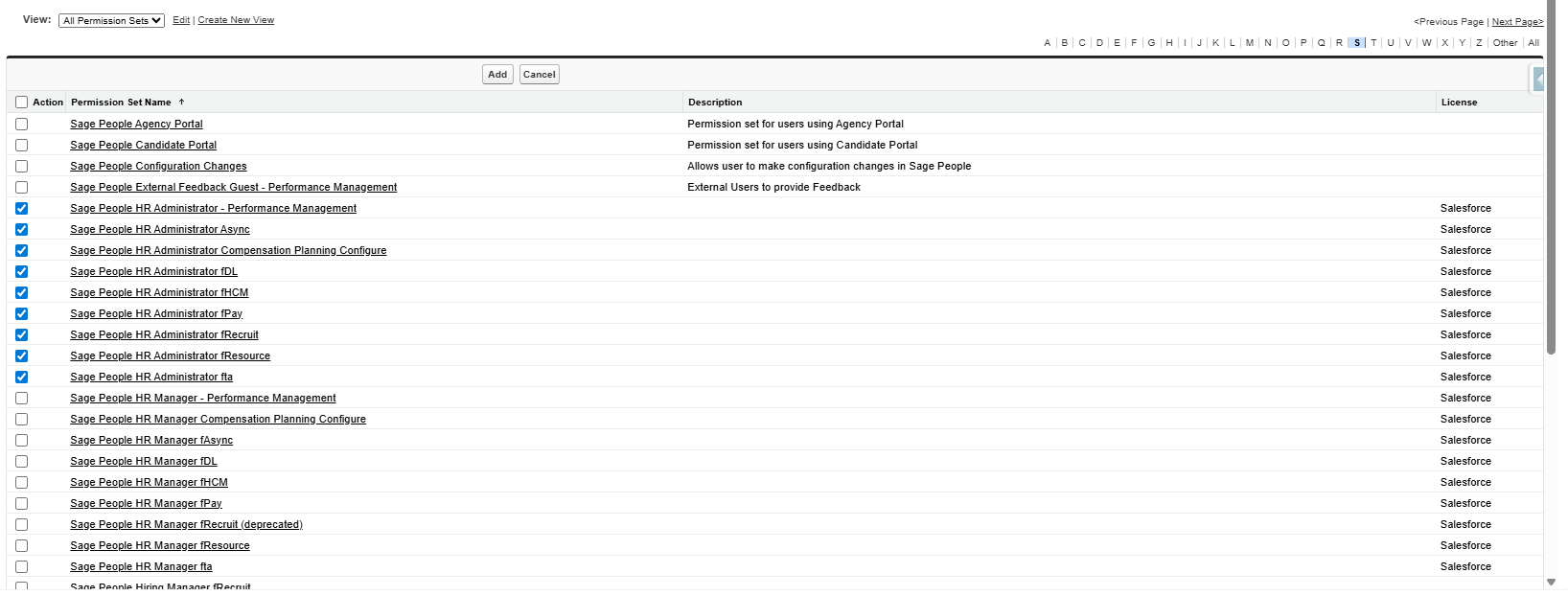
-
Click Add to Group.
Assign the permission set group to users
-
In the Permission Set Group, select Manage Assignments.
-
Click Add Assignments.
-
Select the users who need Sage People access.
-
Click Next.
-
Click Assign to apply the permissions.
Once assigned, the user record will show the new permission set group under their assigned permissions..