If you're having issues with the Sage People app and want support, enable analytics cookies in the Cookie management section. Analytics cookies enable error reporting functions that send issue details to Sage to assist with troubleshooting.
We've detailed some common issues and suggested solutions below.
Users can't sign in to the app
If you can't access the app using single sign-on (SSO), check that your organization has configured and tested SSO. To use SSO, users need to sign in using your organization's custom My Domain URL. See Distribute the app to your users.
Ensure you've configured your device to use the network-provided system date and time. Don't set the system time manually. Single sign-on requires an accurate timestamp for successful authentication.
If the app shows you an "Unable to log in" message when attempting to sign in, check the following:
- Your organization has upgraded to the minimum supported version of the HCM and Time packages
- Your organization has enabled mobile features in your HCM package
- You've assigned the Sage People Mobile App permission set to users
- You've assigned an integration user permission set to users that includes the API Enabled permission
- You've enabled the Mobile Is Active setting in the policy
Check the configuration steps we've detailed in the Configure the app.
If the app shows you the message "Error getting user session", check you've enabled the Admin approved users are pre-authorized setting. You'll find this in your Connected App configuration. If you've enabled this setting, you must pre-authorize users by assigning the connected app to the user's permission set or profile. See Manage connected app settings.
Users can’t access time off or work details
If users are unable to book or approve time off, or access work details, check you've enabled the following settings for WX Services:
- Active
- Show in mobile
If your WX Services have a set start date and end date, ensure that the service is currently valid. If the service has a start date in the future or an end date in the past, the service won't be available.
To view work details in the app, team members must have fields available in the Work Details View field set within the Team Member object.
The organization chart doesn’t appear
Ensure you haven't hidden the org chart by the HCM configure page setting:
-
Go to Setup and in Quick Find enter Installed Packages.
- Find the Human Capital Management (HCM) package and select Configure.
-
Ensure you haven't selected the Hide Org Chart setting.
- Select Save.
Ensure you haven't enabled the Hide Org Chart setting in your policy:
-
Select the App Launcher and open Policies.
- In the Policies list, select the policy you want to edit.
-
Select Edit. Scroll down to the WX section, and clear the Hide Org Chart checkbox.
- Select Save.
Incorrect values show in the time off graph
Incorrect values can display in the time off graph if you have more than one default absence accrual rule for an absence type. To resolve the issue, ensure that there’s a single absence accrual rule for each absence type.
See Time off balance shows "No data available".
Time off balance shows "No data available"
To display time off balance, check the Show Year End Balance option in the Absence Accrual Rule, Display Options section. Time off balance displays No data available if you don't check the box.
"No data available" can display for your time off balance if you have more than one default absence accrual rule for an absence type.
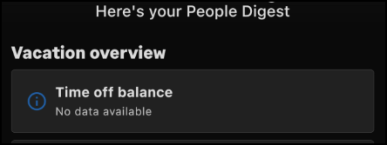
To resolve the issue, ensure that there’s a single absence accrual rule for each absence type.
-
In Salesforce Lightning Experience, click the App Launcher and open the Absence Accrual Patterns item.
In Salesforce Classic, click the All Tabs button and open the Absence Accrual Patterns tab.
- Click the name of the absence accrual pattern you want to edit.
- Under Absence Accrual Rules, ensure that each absence type (for example "Vacation", "Absence") has a single default rule associated with it.
-
If necessary, click Edit, and change the Default checkbox selection, then click Save.
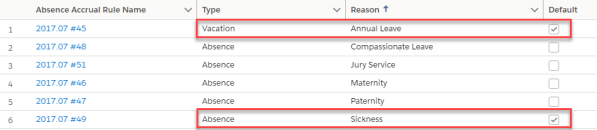
- Repeat this for each absence accrual pattern relevant to your app users.
Payslips display in the incorrect order
Payslips can display in the incorrect order in the Payslips area of the app. This can be because you haven't included the Pay Date field in the Payroll Line Summary field set. If you haven't included this field, the system orders payslips by the date that a user created the payroll item. Also, if you don't include this field, payslips can change order in the list when a user opens a payslip entry. To resolve these issues, ensure you add the Pay Date field to the Payroll Line Summary field set.
For information about adding fields to the payroll fieldsets, see Configure payroll field sets.
Error: "Failed to retrieve your actions"
The system displays the error message Failed to retrieve your actions, Try again later when a user clicks Actions. This happens when there are no actions against the user.