To use the Sage People mobile app, your users must have the API Enabled permission. The recommended way to assign this permission to your users is via a custom permission set that you can assign to any users that require integration functionality for their account.
To create a Permission Set:
-
Go to Setup. In Quick Find, enter Permission Sets.
-
On the Permission Sets page, select New.
-
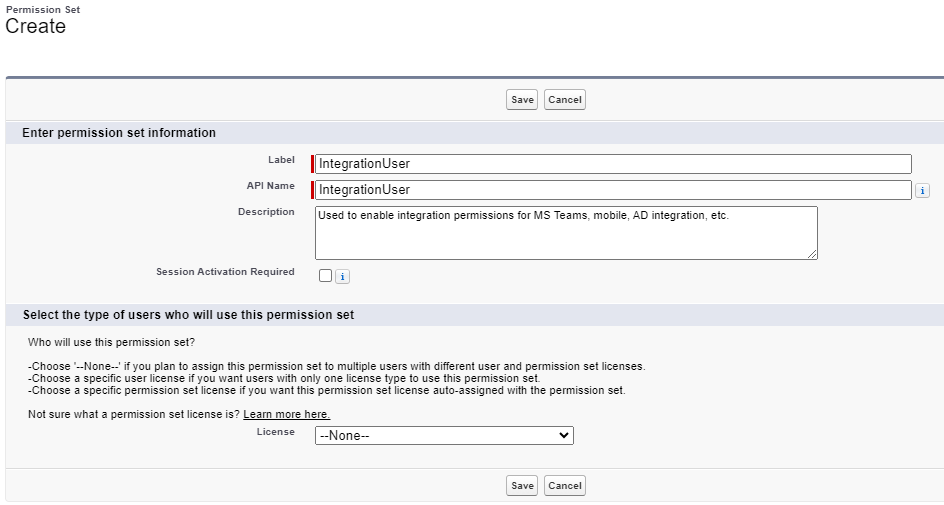
Complete the fields as follows:
-
Enter a Label. The API Name auto populates from the label
-
Enter a Description detailing what you'll use the permission set for, or what permissions it contains
-
Leave License Type set to None
-
-
Select Save.
The system displays the Permission Set settings screen.
To configure the permission set:
-
On the settings screen, scroll down to the System section and select System Permissions.
-
Select Edit.
-
Select the API Enabled permission.

-
Select Save. The screen displays a warning.
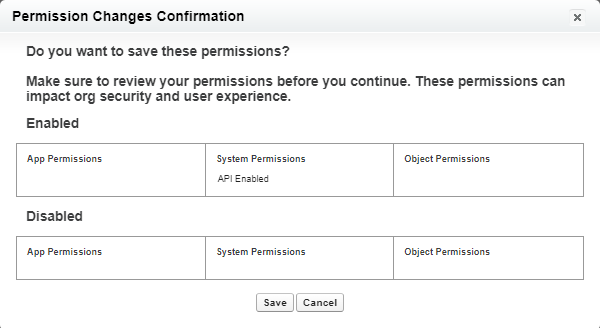
Review the message. If you're happy to proceed, select Save.
ImportantThe API Enabled permission lets a third-party application like Microsoft Teams or the Sage People mobile app access the user's data. Only assign this permission to those users who need access to Sage People integration functions.
Next, assign the permission set to any users that need to use the app. See Assign permission sets.