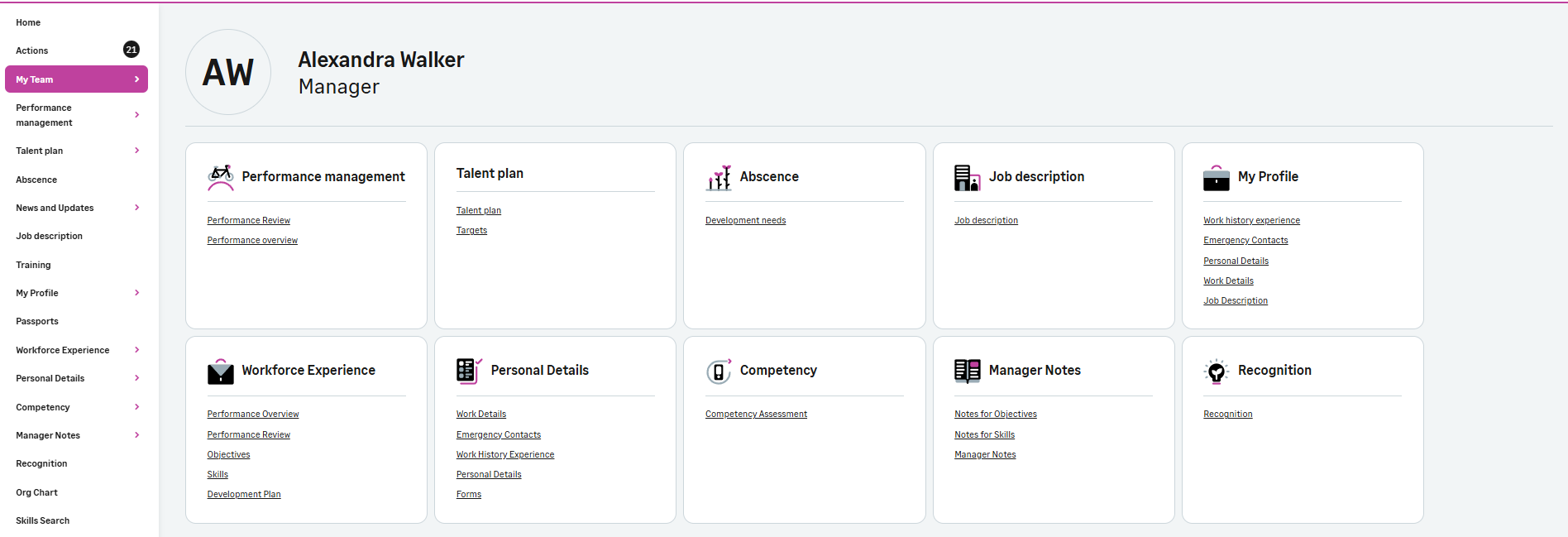
WX Services icons for accessible manager navigation
We're building on the accessibility and navigation improvements in the Sage Y26.1 release. This update delivers a visual enhancement to improve how managers navigate and interpret information within direct report pages.
Managers can now see contextual icons alongside direct reports. These give an at-a-glance visual clue to support faster recognition and navigation. This enhancement compliments to accessibility improvements from Y26.1 by making key information clearer and more intuitive. The icons also respect the brand theme.
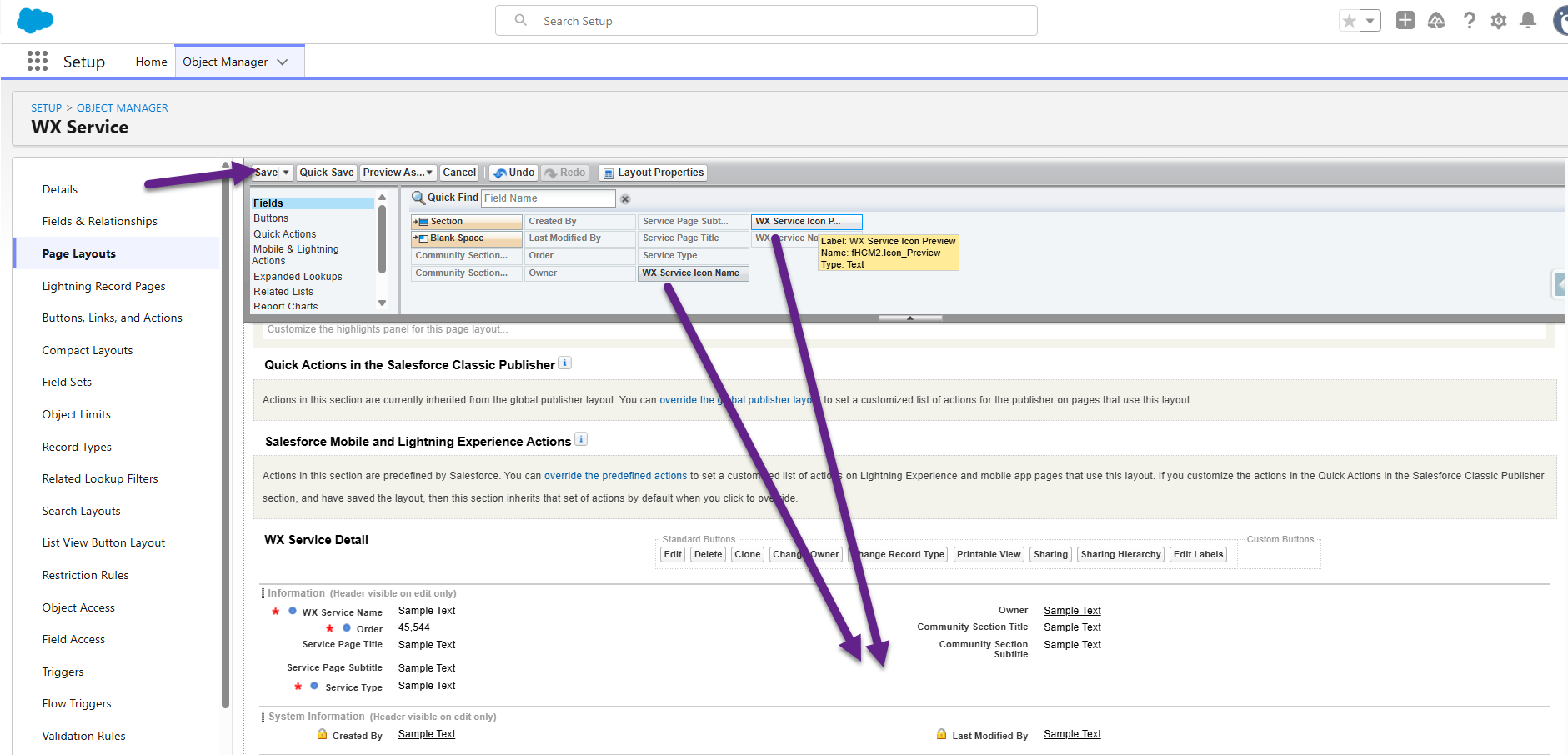
Administrators can configure icons for WX Services, which the system then displays to managers when they're viewing direct report pages. A new WX Service Icon Name field is available when you edit WX Services. A corresponding icon preview field lets you visualize the icon you select after saving a value in the WX icon service name field.
Once you select and save a value from the picklist, the system applies the icon to WX automatically. When a manager goes to a direct report's page, the system displays the icon you've selected. This enhances visual clarity.
Add the icons in WX Services
-
Go to App Launcher and search for WX Services.
-
Select the Service you want to update.
-
Click Edit next to the WX Service Icon Name field.
-
Select the icon you want to add from the dropdown list.
-
Clicking Save shows you a preview of the icon you've selected.
-
Return to your WX dashboard and refresh to see the icon.
You can download a full list of icons here.
If you don't see the WX Service Icon Name and WX Service Icon Preview fields within the WX Service Details, you can add them.
-
Go to Setup and select Object Manager.
-
Use the quick find to search for WX Services and select it.
-
Click on Page Layout, then click Category Layout. Drag the WX Service Icon Name and WX Service Icon Preview to your desired location in the page.
-
Click Save.