OAuth 2.0 - username - password flow for connected apps
What's happening?
Salesforce are removing support for connected apps to use the Username – password flow for connected apps. This means that from February 2027 any connected apps still using this authentication flow will stop functioning.
When is this happening?
-
Summer 26: Since summer 26, it hasn't been possible to setup new connected apps using this method
-
February 27: This authentication method is fully disabled
Will this affect you?
This will affect you if you have any connected apps that use the username – password flow for authentication.
You can check to see if your Org has Allow OAuth username - password Flows enabled with the steps below. If you have this disabled, you're not affected. If you've enabled it, you need to check if you're using it.
Check if you're using OAuth 2.0 username - password authentication
-
Go to Setup and select Login History.
-
Create a list view filtering on Login Subtype to equals OAuth Username - Password.
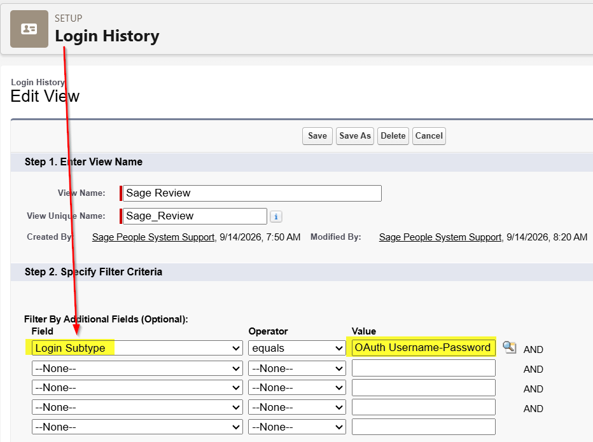
-
Review the results.
-
If the system returns records, this means you're using this authentication
-
If the system returns no records, you're unlikely using this authentication
-
Recommended action
-
Check if you've enabled OAuth Username - Password Flows for your org. You'll find this by going to Setup, selecting Identity, and then clicking the OAuth and OpenID Connect settings. If you haven't enabled this, you're not affected.
-
Follow the steps above to check if you're using this authentication.
-
If you're using this method, check if you can identify the setup using this. For example, the application or username can indicate the service. Or there can be other values that indicate what this is.
-
If you're using any connection with a third-party vendor, we recommend contacting them. Ask for advice on moving to a more secure method, for example, Client Credentials or JWT.
-
If you're unsure, raise a case with our support team. They can help determine what's using this authentication.
-
If you're using AD sync, contact your CSM who can arrange for our team to support you.
-
Once you've changed your authentication, re-run the login history report. Check there's no recent results.