Phishing-resistant Multi-Factor Authentication (MFA) for privileged users and admins
What's happening?
Salesforce will begin enforcing phishing-resistant Multi-Factor Authentication (MFA) from 1 October 2026 for affected users in production and sandbox organizations.
Action required
Identify affected users, confirm whether they use direct login or SSO, complete the relevant actions below and test access before enforcement begins.
| Deadline | Affected users | Risk |
|---|---|---|
| 1 October 2026 | System Administrators and users with specified elevated permissions | Affected users may be blocked from signing in |
Step 1 - check if you're affected
This change applies to users with the System Administrator profile or any of these permissions:
-
Modify All Data
-
View All Data
-
Customize Application
-
Author Apex
Step 2 - Determine how your users login
-
Identify affected users. Review profiles and permission sets for the permissions we've listed above.
-
Confirm how each user signs in. Choose Direct login or Single Sign-On (SSO). Check both if a user uses both routes.
-
Configure and test phishing-resistant access. Complete the relevant actions below, then sign out and test the full sign-in journey using a phishing-resistant method.
Direct login
Register a phishing-resistant method. Examples include Windows Hello, Touch ID, Face ID or a FIDO2/WebAuthn security key. Salesforce Authenticator, TOTP applications and temporary verification codes will not meet this requirement.
-
Log in to Salesforce using your existing credentials or MFA method
-
Go to your personal settings via your profile icon then clicking Settings (or My Settings)
-
Find Advanced User Details
-
Look for the section on Built-in Authenticators or Security Keys and click Register or Create Passkey
-
Follow the browser or device prompts to link your hardware security key (like a YubiKey) or biometric scanner (like Windows Hello, Touch ID, or Face ID)
-
Test the login. Sign out and sign back in with an affected user using the phishing-resistant method
-
Plan recovery. Where appropriate, register an additional phishing-resistant method and make sure the user knows where the passkey or security key is available
Single Sign-On (SSO)
Using SSO doesn't automatically confirm compliance. Affected users must authenticate through SSO with a phishing-resistant MFA method that sends an accepted signal to Salesforce. Ask your IT or identity team to:
-
Confirm all affected users are logging into SSO via a phishing-resistant MFA method. Salesforce Authenticator, TOTP applications and temporary verification codes will not meet this requirement.
-
Confirm that the identity provider sends an accepted phishing-resistant AMR/ACR signal for affected users.
-
Click Setup
-
In the Quick Find box, search for Login History
-
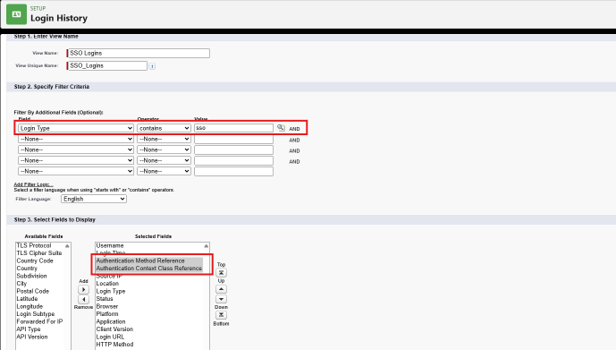
Click Create new view
-
Give the view a name (we suggest SSO logins)
-
Enter a filter with Login Type contains SSO
-
Add Authentication Method Reference and Authentication Context Class Reference to the selected fields. (We would recommend putting these near the top)
-
Click Save
-
Click Download now and open the file
-
Confirm that the login records contains phishing-resistant references such as: Fido, fido2, passkey, hwk, pki ,smartcard, tlsclient, x509, phr (you can find all AMR / ACR values here)
-
If the AMR/ACR values are blank, missing, or only contain non-phishing-resistant values, work with your identity provider team to update the SAML or OpenID Connect configuration so that the appropriate phishing-resistant claims are sent to Salesforce
-
Repeat the test for additional affected users to verify that the correct claims are consistently being passed for all privileged accounts
-
Click Setup
-
In the Quick Find box, search for Session Settings
-
Scroll down to Session Security Levels
-
Ensure your Single sign on method is listed under High assurance, if it isn't select in standard and click the add arrow, then save
-
Test the complete SSO sign-in journey with an affected user
From 1 October 2026, privileged users must meet Salesforce’s phishing-resistant MFA requirement. Please confirm that affected users authenticate through our identity provider with a phishing-resistant MFA method, that the identity provider sends an accepted phishing-resistant AMR/ACR signal, and that the full SSO sign-in journey has been tested for an affected user.
Test that you're ready
-
You've identified every affected user
-
You know the login route for each affected user
-
Direct-login users have registered and tested a phishing-resistant method
-
The IT or identity team has confirmed that SSO uses phishing-resistant MFA and sends the required signal
-
You've tested the full sign-in journey successfully
-
You've tested mobile access where relevant
-
You've agreed a recovery or backup approach
FAQs:
1. A user is having a problem logging in despite our SSO provider passing the correct token what steps can I take?
Have the user clear their browser history and cookies and restart their device. If there is cached login information stored it can prevent signin despite all steps having been taken.
2. Does phishing-resistant MFA apply to API users?
No. Salesforce states that phishing-resistant MFA is required only for users who access the Salesforce user interface (UI). It is not required for API logins.
3. For direct login, Salesforce guidance says “Ensure Security Keys are enabled in your org” but we only want to use security keys for the system administrators not the wider employee base, are you able to give guidance on this?
If you do not want non-admin users to be able to use security keys or passkeys, you do not need to enable these settings under Identify Verification: "Let users verify their identity with a physical security key (passkey) such as U2F or WebAuthn" or "Let users verify their identity with a built-in authenticator (passkey) such as Touch ID or Windows Hello". The privileged users will be prompted to register and use a phishing-resistant MFA method as part of the Salesforce enforcement.
Contact support
If you've worked through the guidance above and are still experiencing issues, the Sage People Support team can help investigate Salesforce login and access problems.
We can help with:
• Understanding the Salesforce phishing-resistant MFA requirement
• Reviewing Salesforce login history, error messages and authentication outcomes
• Troubleshooting login and access issues after configuration changes
• Helping verify that the authentication method being used meets Salesforce requirements
• Investigating authentication issues and identifying when further assistance from Salesforce may be required
Note that Support can't configure your identity provider (IdP), SSO platform, passkeys, security keys or other internal authentication systems. These changes must be completed by your IT or identity team.
Contact Sage People Support through your usual support channels.