Understand how to create a custom report type in Sage.
-
Go to Setup. In Quick Find, enter Report Types.
-
Select New Custom Report Type.
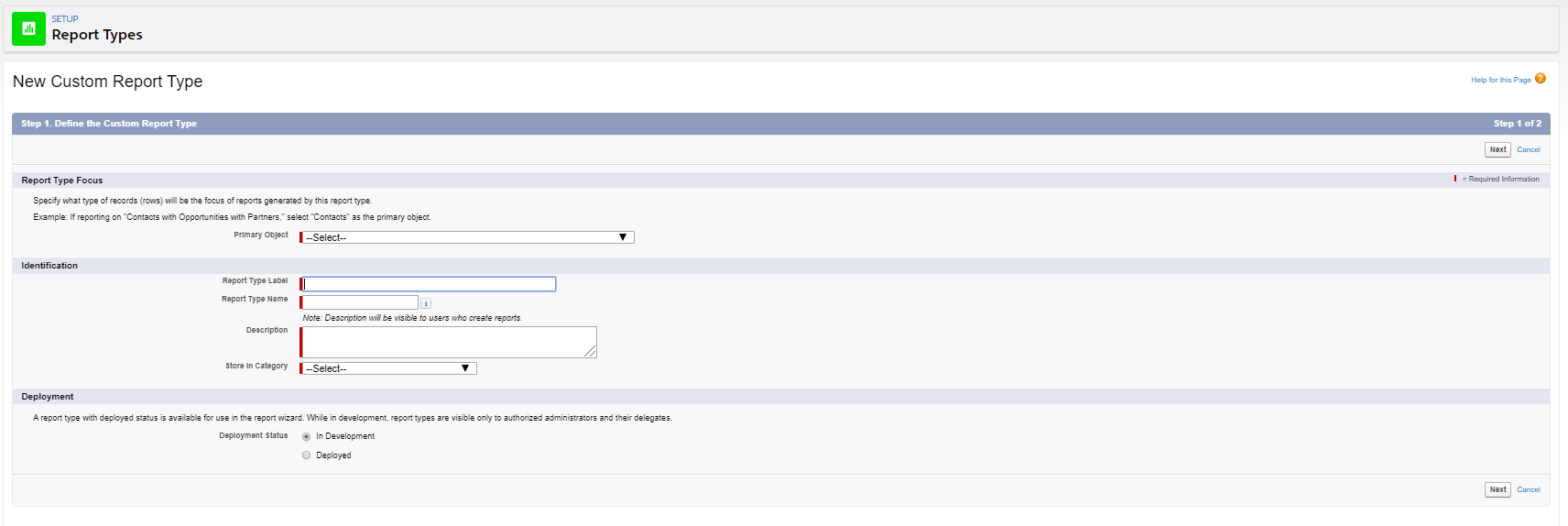
Sage People displays the New Custom Report Type screen.
-
Complete the fields as below.
Field Description Primary Object Picklist. Select the object to be the focus of this report.
For example, for a report about bonuses with Team Member details, select Team Member as the primary object.
Report Type Label Enter a name for the custom report type.
Label displays to users when they select a report type for a new report.
Report Type Name The unique name in the system. Completes automatically based on the Report Type Label.
Must begin with a letter, contain alphanumeric characters and underscores only.
Description Enter the purpose and characteristics of this custom report type.
Description displays to users when they select a report type for a new report.
Store in Category Picklist. Select the category in which you include this custom report type. Categories display on the Create Reports screen.
Typically, Other Reports.
Deployment Status Radio buttons, defaults to In Development. A custom report type in development isn't yet visible to users creating new reports. Select Deployed when you're ready for the custom report type to be available for new reports.
-
Select Next.
-
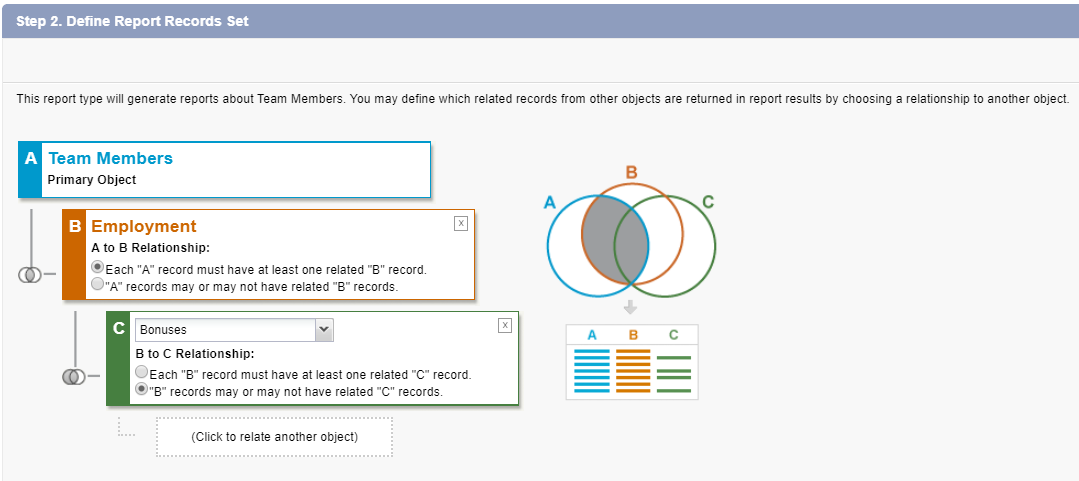
In Step 2. Define the Report Records Set you can add other objects related to the primary object (A) to the custom report type. Only objects related to the primary object are selectable. After selecting the second object (B), only objects related to that object are selectable as the third object (C), and so on.
For example, for a report about bonuses containing fields from the Team Member object, add the object relationships as follows:
-
Team Member (A): primary object
-
Employment (B): each A record must have at least one related B record
-
Bonuses (C): B records may or may not have related C records
-
-
We've shown this combination of object relationships below:
 Note
NoteWhen you use the option to require related records, the reports you base on the report type don't include records without related records for the object you select. Each record must have at least one related record. If a report doesn't contain the records you expect, check the object relationships in the custom report type.
-
-
Select Save.
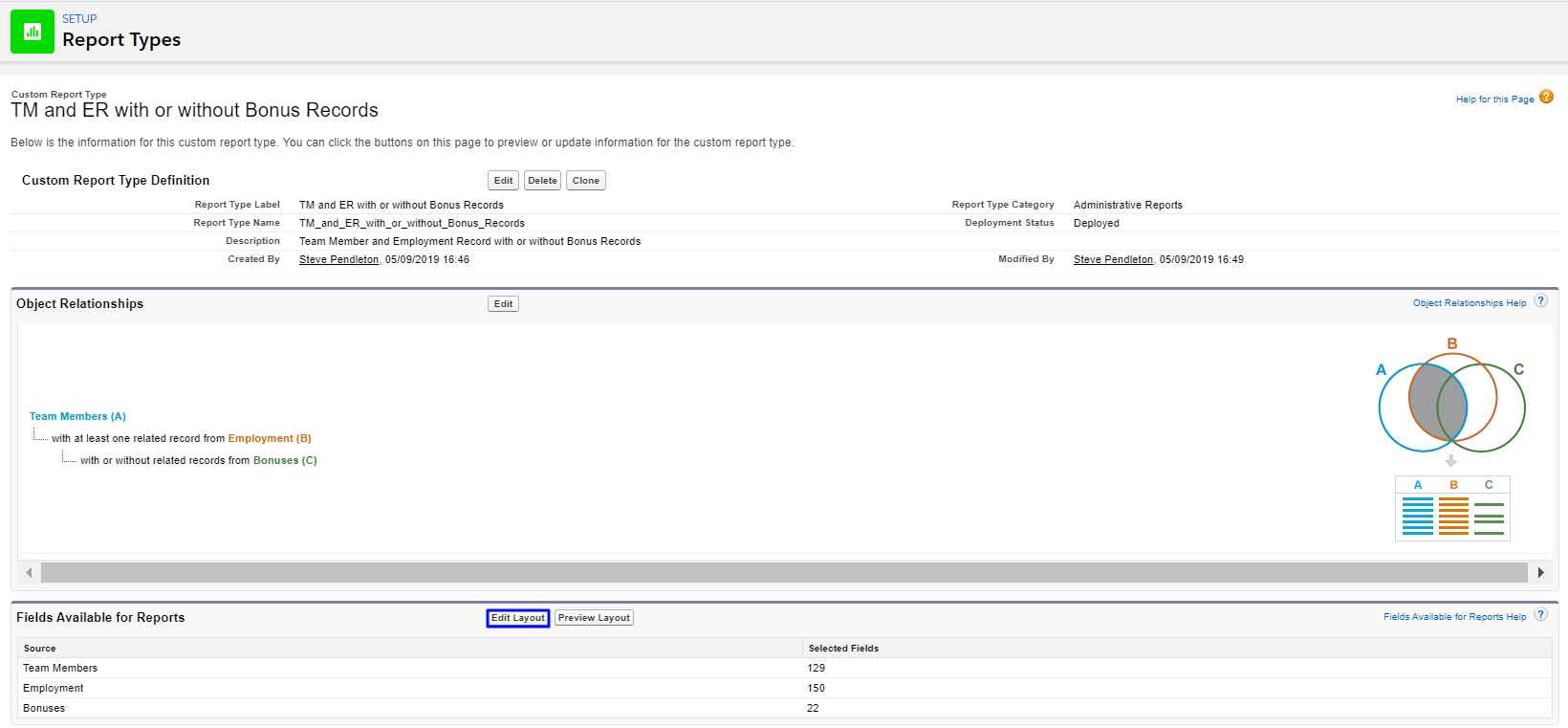
After saving a custom report type,the system adds all the fields on the objects you selected as available fields to the custom report type. The number of fields for each object shows in the Fields Available for Reports section.
-
To remove fields from the report type, select Edit Layout, as we've shown below:
-
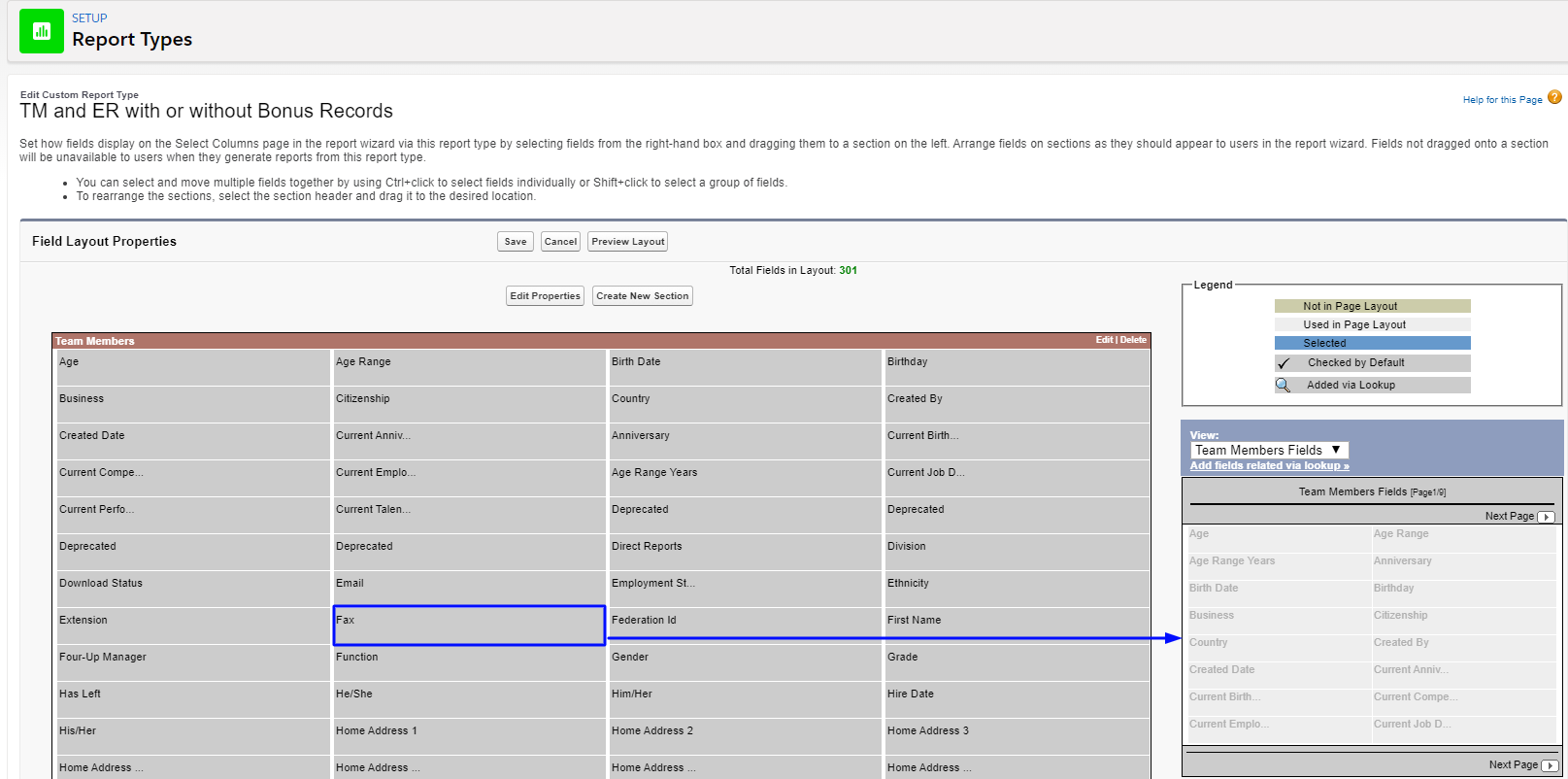
On the edit layout screen, drag fields from the layout into the selection area as below:
 Tip
TipIf you remove a field, make a note of it in the report type Description.
-
To add fields to the report type, drag them from the selection panels. Or select Add fields related via lookup and choose the fields to add, as shown below:
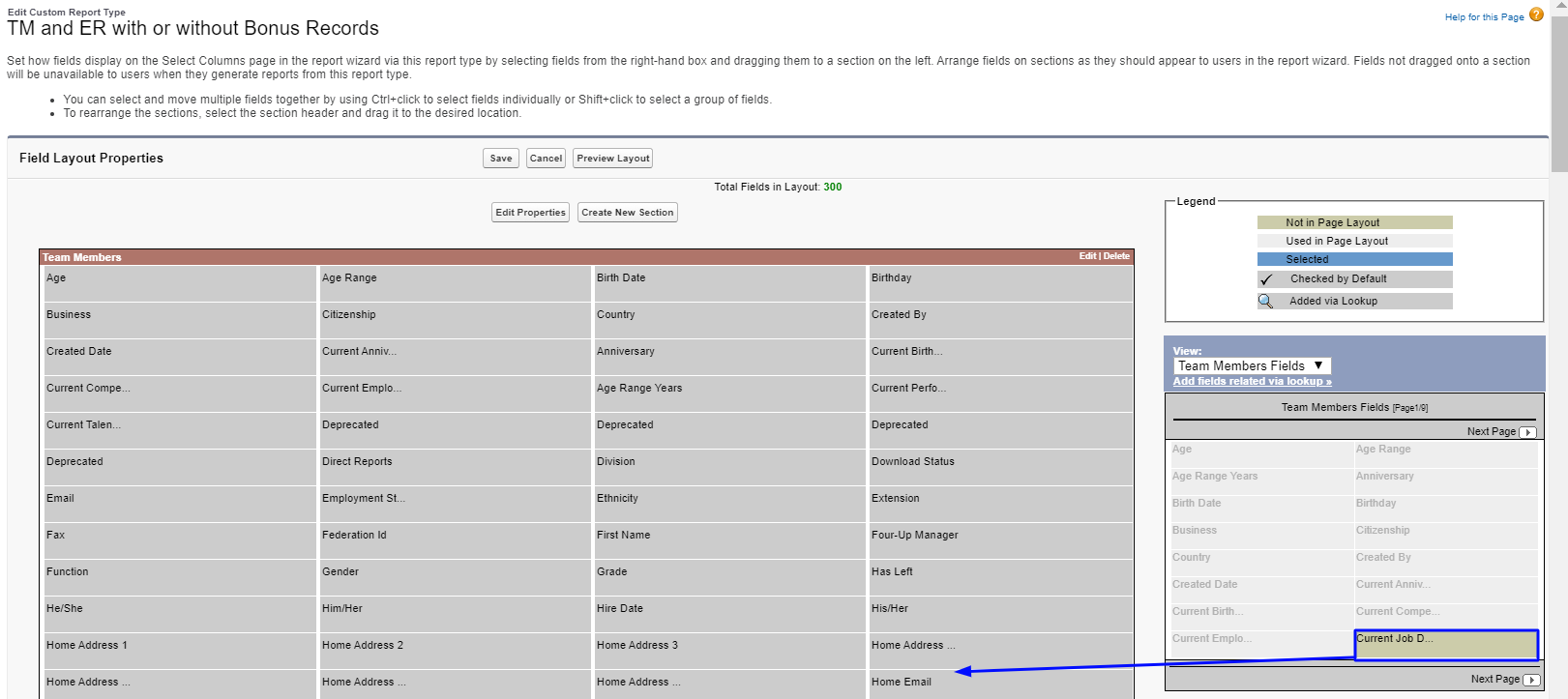
By default, the system adds fields to the report type layout in alphabetical order. When you add fields, you can drag and drop them anywhere on the layout. The location on the layout determines the order in which fields are available in the report builder.
Custom report types automatically contain only the fields available in the object when you created the custom report type. If you add new custom fields to an object, the new fields aren't available for reports until you add them to the custom report types.