Email Templates |
Setting up a letterhead
You'll use a letterhead to apply consistent corporate branding to all email templates you use in Sage People. If you plan to use more than one email template, it's a good idea to have a letterhead.
To set up a letterhead:
-
Go to Setup. In Quick Find, enter letterhead, and select Classic Letterheads from the search results.
-
If the Understanding Letterheads screen displays, select the Don't show this page again checkbox. Then select Next.
Sage People opens the Letterhead view. If you're creating the first letterhead for your organization, this view is empty.
-
Select New Letterhead:

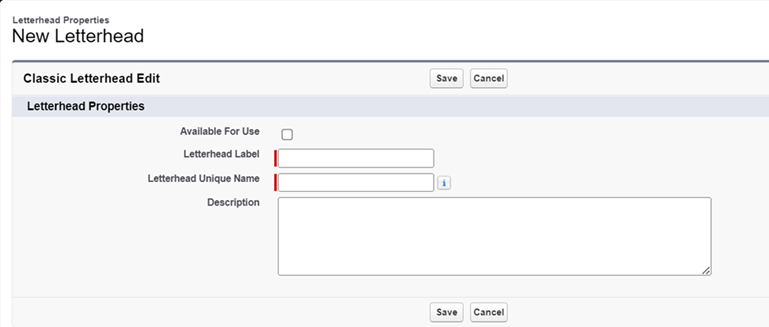
Sage People displays the Letterhead Properties New Letterhead page:
-
Enter the details of the new letterhead:
Field What to enter Available For Use
Checkbox. If you check this, the system marks the letterhead as available. You can use it for email templates.
You can leave this unchecked until you have successfully defined the letterhead properties.
Letterhead Label
Text. The name by which you want the letterhead known.
Letterhead Unique Name
Text. The system automatically generates this from the Letterhead Label.
Description
Text. A meaningful description of the letterhead to help you identify it in future.
-
Select Save.
Sage People displays the Letterhead Properties page for your new letterhead, enabling you to customize its look and feel.
You can define:
-
Background color
-
Header properties, including color and log
You can select a logo from files stored in the Documents tab. The Documents tab is only visible in the Salesforce Classic interface.
If you need to upload a logo to use in the letterhead, follow these steps:-
Select your user icon and then select Switch to Salesforce Classic.
-
Go to the Documents tab. If the system doesn't display the tab on your tab bar, select + All tabs. Then select Documents.
-
On the Documents Home page, select the Folder where you want to upload the logo and select Go!.
-
On the folder listing page, select New Document.
-
On the Upload New Document screen, complete the fields as follows:
Field What to enter Document Name Enter a name for the document. The name displays in the list of Documents. Document Unique Name Automatically completes based on the name. Indicate Document is Internal Checkbox. Check to add a flag to indicate to document viewers the document is for internal use only and shouldn't be shared outside the organization. Doesn't apply any security policy on the document. Externally Available Image Checkbox. Check to enable users to add images to documents that anyone can access, such as in logos in email template letterheads.
Folder Picklist. Defaults to the folder where you selected New Document. Description Optional. Enter a description of the document, displays in the list of documents. Keywords Optional. Enter keywords that users can use to search for this document. -
In the Select the File section for File to upload, select Choose File. Follow your browser prompts to select a file from your computer.
-
Select Save.
-
When you're finished with the Documents tab, from the page header select Switch to Lightning Experience.
-
-
Body colors
-
Footer properties, including color and logo
-
Separator lines between header, body, and footer
-
Bottom line
Set up the letterhead in line with your company standards.
-
-
Select Preview to check the appearance, and return to the Letterhead Properties page to make any changes you need.
-
When you're happy with the preview, select Save.
Sage People displays the letterhead detail page, complete with a preview.
-
To edit your work further, select Edit Letterhead and make the changes you want:

-
To make your letterhead available for use, select Edit Properties:

Sage People displays the Letterhead Properties New Letterhead page.
-
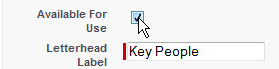
Check Available For Use:
-
Select Save.
-
Go to Setup. In Quick Find, enter letterhead. Select Classic Letterheads from the search results. Check you've selected Available For Use in the list of letterheads.