Org-wide health check recommendations
Understand our health check recommendations for your Sage org. This page follows the Salesforce Health Check sections so you can quickly see our recommended settings and what each item means.
These are suggestions and can vary by setup. If you’re unsure about them, work with your security team to make sure your settings match your business’s security needs.
High-risk security settings
| Setting | Recommended setting | Description |
|---|---|---|
| Enable clickjack protection for customer Visualforce pages with standard headers |
Enabled (This matches the standard value Salesforce recommends) |
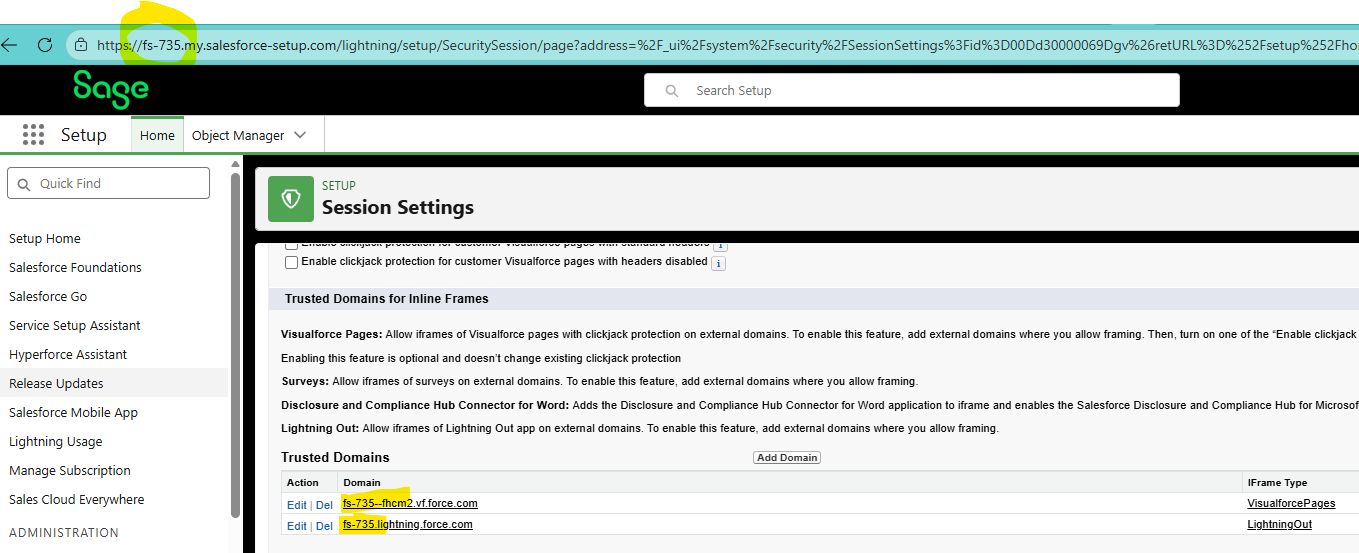
Protect against clickjack attacks and allow framing on trusted external domains. This setting allows external sites to frame Visualforce pages but with standard headers enabled. This means that the browser will allow iframes to load from external domains. It provides a level of protection against clickjacking attacks. However, it's not the most secure option, as it doesn't restrict the use of iframes entirely. You need to specify Trusted Domains as:
|
| Enable clickjack protection for customer Visualforce pages with headers disabled |
Enabled (This matches the standard value Salesforce recommends) |
Protect against clickjack attacks and allow framing on trusted external domains. Setting the showHeader attribute to false disables standard headers. This setting disables the use of headers for Visualforce pages. It prevents external sites from framing them. The most secure option, as it completely prevents iframes from loading. Offering protection against all types of clickjacking attacks. You need the trusted domain settings we describe in Enable clickjack protection for customer Visualforce pages with standard headers. |
| Require HttpOnly attribute |
Enabled (This matches the standard value Salesforce recommends) |
We use the HttpOnly attribute to restrict access to cookies. This makes them inaccessible via non-HTTP methods such as JavaScript. This enhances security by preventing client-side scripts from accessing sensitive information you store in cookies. |
| Maximum invalid login attempts |
3 (This matches the standard value Salesforce recommends) |
The number of login failures the system allows for a user before they're locked out. If you've enabled single sign-on (SSO), the SSO authority usually handles login lockout policies for users with the Is Single Sign-On Enabled permission. Salesforce allows three, five, 10, or 'No limit'. Setting five or 10 is in the valid range to not class as a Critical issue. The system flags them as a warning on the Health Check report. |
| Expired Certificate | 0 | This is the number of certificates you configured in the org that are expired. You can investigate any that show as expired and act to replace it with an up-to-date certificate. |
| Number of security risk file types with Hybrid behavior | 0 security risk file types with Hybrid behavior |
Specify what happens when users attempt to download specific file types. Download (Recommended): The system always downloads the file. Execute in Browser: The system displays the file and executes automatically. This is when a user accesses it in a browser or through an http request. Due to security risks, some file types aren't available to execute in the browser. Hybrid: Attachment and document records execute in the browser. The system downloads Salesforce Files. It's a security risk if you set HTML file types to Hybrid behavior. |
| Lock sessions to the domain in which they were first used | Enabled |
The "Lock Sessions to the Domain in Which They Were First Used" setting in Salesforce is a security feature. Salesforce designed it to restrict the usage of session IDs to the domain where users initially created them. This helps prevent unauthorised use of session IDs across different domains, enhancing security. When you enable this setting, the system ties each session ID to the specific domain where a user first users it. If a user or system attempts to use the same session ID on a different domain, the system invalidates it. This prevents scenarios where someone can copy or misuse session IDs maliciously in unintended domains. Note
This setting prevents the use of untrusted VPNs by end users.
|
| Let users verify their identity by text (SMS) | Enabled | If you enable multi-factor authentication (MFA) for your customer or partner Experience Cloud sites, external users can log in using one-time passcodes. The system delivers these via SMS text messages. Users need only a verified mobile number and access to their device when they log in. This option is available for external users only. External users can also verify their identity with other supported MFA verification methods. For example, Salesforce Authenticator built-in authenticators, security keys, and third-party authenticator apps. |
| Enable clickjack protection for Setup pages | Enabled | Salesforce enables this by default. Contact Salesforce Customer Support to disable it. There's no reason to change the default. |
| Enable clickjack protection for non-Setup Salesforce pages | Enabled | Salesforce enables this by default. Contact Salesforce Customer Support to disable it. There's no reason to change the default. |
| Enable CSRF protection on GET requests on non-setup pages | Enabled | Salesforce enables this by default. Contact Salesforce Customer Support to disable it. There's no reason to change the default. |
| Enable CSRF protection on POST requests on non-setup pages | Enabled | Salesforce enables this by default. Contact Salesforce Customer Support to disable it. There's no reason to change the default. |
| Number of Objects with Default External Access Set to Public | 0 | There's no requirement to set any objects as 'Public Read Write'. |
| MFA enabled | Enabled | Salesforce now enforce MFA Usage so you don't have a choice in this setting. |
| Number of trusted IP ranges | 1 | We recommend trusting your corporate network where it’s secure and managed by your organisation. Trusted networks can reduce unnecessary login challenges for users connecting from known corporate IP addresses. Only add networks that your organisation controls and secures, such as managed office networks or corporate VPNs. Don’t add home broadband, guest Wi-Fi, public networks or large external IP ranges as trusted networks. |
| Allow access to External Client App consumer secrets via Metadata API | disabled | If enabled, Users with sufficient administrative access could potentially retrieve those secrets through APIs or deployment tooling. the system exposed those secrets, an attacker could impersonate the connected application and gain access to sensitive data. |
Medium-risk security settings
| Setting | Recommended setting | Description |
|---|---|---|
| Force relogin after Login-As-User | Enabled |
To remain logged in as an administrator after using the "Login As" feature in Salesforce, you need to adjust a session setting. By default, Salesforce will log you out of your admin session when you log out from the user session. Ensure this setting aligns with your organisation's security policies before disabling it. |
| Enforce login IP ranges on every request | Enabled |
Having this set will mean remote workers (for example, home workers) won't be able to access the system. Therefore, many Customers will want to disable this. |
| Terminate all of a user's sessions when an admin resets that user's password | Enabled | When an administrator resets a user's password, this setting immediately logs that user out of Salesforce on all devices and browsers. |
| Require a minimum 1 day password lifetime | Enabled | Enforcing a minimum 1-day password lifetime in Salesforce ensures users can't change their password more than once within a 24-hour period. This prevents rapid password cycling to bypass password history policies and strengthens security. |
| Administrators Can Log in as Any User | Enabled |
When you enable this feature, System Administrators can log in as any user in their organisation. They can do this without asking internal end users to grant login access. Salesforce recommends you disable this. However, enabling this streamlines troubleshooting and User support. |
| Password complexity requirement | Must include alpha, numeric, and special characters | Salesforce doesn't enforce any password policies for SSO users. |
| User passwords expire in | 30 days | Salesforce doesn't enforce any password policies for SSO users. |
| Enforce password history | 3 passwords remembered | Salesforce doesn't enforce any password policies for SSO users. |
| Minimum password length | 8 characters | Salesforce doesn't enforce any password policies for SSO users. |
| Enable Content Sniffing protection | Enabled | Saleforce enables this by default. Contact Salesforce Customer Support to disable it. There's no reason to change the default. Content Sniffing protection prevents browsers from incorrectly interpreting files as executable scripts. |
| Enable Content Security Policy protection for email templates | Enabled | Prevent unsafe or untrusted content from appearing in Salesforce email templates to keep users safe. |
Low-risk security settings
| Setting | Recommended setting | Description |
|---|---|---|
| Remote Site Settings | No remote sites with the Disable Protocol Security option selected. See the description for valid exceptions. |
To allow access to the remote site, regardless of whether the user’s connection is over HTTP or HTTPS, select the Disable Protocol Security checkbox. When you select it, Salesforce can pass data from an HTTPS session to an HTTP session, and vice versa. Only select this checkbox if you understand the security implications. We've described an example where you need to check this here: Create a Salesforce site to support PDFs. |
| Obscure secret answer for password resets | Enabled | Hides password recovery answers while a user is entering them. |
| Password question requirement | Can’t contain password | This prevents users from using their password inside recovery questions and answers. |
| Lockout effective period | 30 minutes | How long an account remains locked after too many failed logins. |
| Force logout on session timeout | Enabled | When a session expires, users must log in again. More secure but slightly less convenient. |
| Require identity verification during multi-factor authentication (MFA) registration | Enabled | Make users verify their identity before registering a new MFA device or method to stop attackers from linking their own. |
| Require identity verification for email address changes | Enabled | Make users confirm their identity before changing their account email to stop unauthorised changes and account takeovers. |
| Session Timeout | 2 hours | Determines how long an inactive user can remain signed in before Salesforce automatically requires them to authenticate again. |
Informational security settings
| Setting | Recommended setting | Description |
|---|---|---|
| Require permission to view record names in lookup fields | Enabled |
You need Read access or View All Lookup Record Names permission to view names in lookup or system fields like Created By and Modified By. Keep this setting enabled as a security best practice. |
| Number of Objects to which Guest User Profiles have Edit Access | 0.0 | Salesforce's recommendation is 4.0. Sage People's recommendation is 0.0 since you don't need guest access for any Objects. |
| Number of Objects to which Guest User Profiles have Read Access | 0.0 | Salesforce's recommendation is 4.0. Sage People's recommendation is 0.0 since you don't need guest access for any Objects. |
| Key Size | 4096 | Customers create any certificates they need themselves. Or our implementation team or partners do it later on their behalf. We recommend the Standard value. |
| Certificate Expiration | 179 days | Customers create any certificates they need themselves. Or our implementation team or partners do it later on their behalf. We recommend the Standard value. |
| Allow redirections to untrusted external URLs without warning | Use 'Never' or 'With User's Permission' |
choose whether your users can connect from Salesforce to untrusted external URLs. Specify the URLs you trust on the Trusted URLs for Redirects Setup page. If you chose the Never option, ensure you specify URLs you trust on the Trusted URLs for Redirects Setup page. When you choose With User's Permission, a warning message displays. This requires these users to confirm that they want to leave the current page before it redirects them. |
| Percentage of active internal users with System Administrator profile | As few as required for your business needs | This indicates how many people have the highest level of access. Fewer administrators generally mean lower risk. |
| SAML Enabled | Enabled |
This report checks whether Salesforce uses SAML-based Sign-On. It doesn’t confirm if all users use Single Sign-On, multi-factor authentication, or OpenID Connect. When the system has SAML enabled, users sign in with their corporate account instead of creating a separate Salesforce password. |
| Lock sessions to the IP address from which they originated | Enabled | This will ensure that if a user changes to a new IP address they need to log back in. This can prevent certain types of security attacks. |