Understand your configuration options for Performance Review in Sage People.
Configure page options
Go to Setup. In Quick Find, enter Installed and select Installed Packages from the search results. On the list of packages, select Configure next to the HCM package.
| Setting | Description |
|---|---|
|
Use Performance Review Templates |
Checkbox. If you check this:
Don't use with the redesigned Performance Overview. |
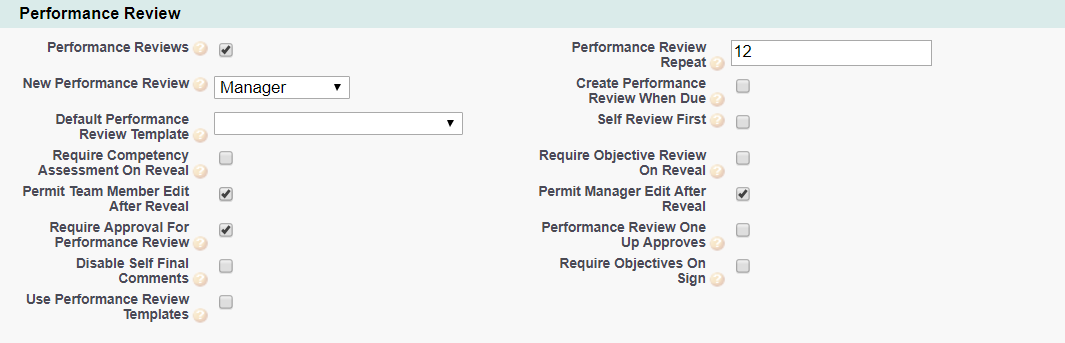
Policy options
|
Option |
Description |
|---|---|
|
Performance Reviews |
Checkbox. If you check this, the Performance Review process is active. You can enable it for WX users. |
|
Performance Review Repeat |
Number. Number of months between performance reviews. The manager receives an action prompt to do another review when due. Note: Action prompts generate when the Sage People Action Creation Time is active. Check the HCM Configure page. Go to Setup, App Setup, and select Installed Packages. Click Human Capital Management and select Configure. |
|
New Performance Review |
Picklist. The lowest level able to start a performance Review. Select from:
|
|
Create Performance Review When Due |
Checkbox. If you check this, and the Sage People Action Creation Time is active, the system creates a new Performance Review for the team member. It does this automatically on the due date. Set the Sage People Action Creation Time on the HCM Configure page. Go to Setup, App Setup, and select Installed Packages. Click Human Capital Management and select Configure |
|
Default Performance Review Template |
Picklist. If you check Use Performance Review Templates AND Create Performance Review When Due, the system creates a template. This is the Performance Review Template to use by default. Select the picklist and choose the Template you want to use as a default. The picklist lists all Templates you've published. |
|
Self Review First |
Checkbox. If you check this, you must reveal the self performance review first. Do this before you prompt the manager to do their review. |
|
Require Competency Assessment On Reveal |
Checkbox. If you check this, you must have completed a Competency Assessment within the last two months. This is before you reveal a performance review. |
|
Require Objective Review On Reveal |
Checkbox. If you check this, you ensure that all objectives you need to review are reviewed before the system reveals the performance review. |
|
Permit Team Member Edit After Reveal |
Checkbox. If you check this, the team member can edit the Performance Review after they revealed it to the manager. |
|
Permit Manager Edit After Reveal |
Checkbox. If you check this, the manager can edit the Performance Review after they reveal it to the team member. |
|
Require Approval For Performance Review |
Checkbox. If you check this, and you've configured an approval process, a submitted performance review sends for approval or rejection. This is before you can reveal it to the team member. An HR Manager can approve the performance review. A manager in the Team Member’s reporting chain that you include in the approval process can also approve it. See the process diagram. This option doesn't operate if the approval process isn't active. If you check this, you must uncheck Performance Review One Up Approves. |
|
Performance Review One Up Approves |
Checkbox. If you check this, and you've configured an approval process, a submitted performance review sends to a one-up manager for approval or rejection. See the process diagram. This option doesn't operate if the approval process isn't active. If you check this, you must uncheck Require Approval for Performance Review. |
|
Disable Self Final Comments |
Checkbox. If you check this, the team member isn't able to add comments when signing a performance review. |
|
Require Objectives On Sign |
Checkbox. If you check this, the system requires current objectives before signing a performance review. |
|
Use Performance Review Templates |
Checkbox. If you check this, new Performance Reviews use Performance Review Templates in place of Field Sets. If you don't check this, new Performance Reviews use field sets to control Review displays. If you don't check this, a checked Use Performance Review Templates checkbox on the HCM Configure page overrides the Policy setting. Don't use with the redesigned Performance Overview. |
In addition to the controls the Performance Review policy options offer, you can use performance review templates. Or use field sets to define the fields appearing in WX for both the manager's performance review. This is for the team member and the team member's self performance review:
- Performance review templates let you define multiple, reusable varieties of performance review. This includes conditions controlling when each template is valid. You can use templates to preserve the integrity of historical reviews. Do this by creating new versions as your processes evolve. The Templates Library holds templates, the Constraints Library holds conditions. Templates replicate field set field availability. Sage People recommends you use performance review templates.
- Field sets let you define the field content of the manager review and the self review. You can define one set of fields for each. This then applies to all performance reviews.
Field sets
| Performance Review object - completed by Manager | |
|---|---|
|
Field Set |
Purpose |
|
Additional Details |
Fields display as read-only fields in the WX Performance Review Edit and Detail views, Additional Details section. The fields display for information purposes during a review and include a range of scores and ratings. The fields display only for the current review, not for any previous reviews. |
|
Additional Details Mid Year |
Fields display as read only fields in the WX Performance Review Detail view, Additional Details section. This is for the mid year performance review. The fields display for information purposes during a review and include a range of scores and ratings. The fields display only for the current review, not for any previous reviews. |
|
Performance Review |
Fields display in the WX Performance Review Detail view in the Manager Comments and Rating section. Use this to add text boxes. You can meet requirements by renaming existing text boxes using the Translation Workbench. This field set provides the only way to display these fields for WX:
Field sets you use with field set mapping provide a more powerful range of options. |
|
Performance Review Mid Year |
Fields display in the WX Performance Review Detail view in the Manager Comments and Rating section for mid year performance reviews. Use these to add text boxes. The mid year equivalent of the Performance Review field set. |
| Self Performance Review object - completed by Team Member | |
|---|---|
| Field Set | Purpose |
|
Self Performance Review |
Fields display in the WX Performance Review Detail view for the Team Member's Self Review. Use these to add text boxes. In most cases, text boxes will correspond with those in the Manager's view of the Performance Review. |
| Self Performance Review Mid Year |
Fields display in the WX Performance Review Detail view for the Team Member's mid year self review. Use these to add text boxes. In most cases, text boxes will correspond with those in the Manager's view of the Performance Review. Fields display in the WX Performance Review Detail view for the Team Member's mid year self review. This is for mid year performance reviews. The mid year equivalent of the Self Performance Review field set. |
Picklists
To edit these default picklist values:
-
Go to Setup and select the Object Manager tab.
-
Select object, select the picklist field, go to the Values related list.
Performance Review object
Rating field
-
Exceeds Expectations
-
Meets Expectations
-
Below Expectations
-
Development Need
Constraint Library Item object
End Date field
-
Current Year Start Date
-
Current Year End Date
Object fields
To rename these custom fields:
-
Go to Setup and in Quick Find enter Override.
-
On the Override page select the:
-
Package hosting the object
-
Language
-
Setup Component = Custom Field
-
Object
-
Aspect = Field Label
-
-
Enter new values in the Field Label Override column
|
Constraint Library Item object (HCM) |
|
|---|---|
|
Default Field Label |
Field Type |
|
Description |
Text Area (255) |
|
End Date |
Picklist |
|
End Date Modifier |
Number (3,0) |
|
Start Date |
Picklist |
|
Start Date Modifier |
Number (3,0) |
|
Feedback Item object (HCM) |
|
|---|---|
|
Default Field Label |
Field Type |
|
Actions |
Long Text Area (32768) |
|
Comment |
Rich Text Area (32768) |
|
Review Date |
Date/Time |
|
Reviewer |
Lookup (Team Member) |
|
Reviewer Type |
Text (40) |
|
Template |
Lookup (Template Version) |
|
Type |
Text (40) |
|
Performance Review object (HCM) |
|
|---|---|
|
Default Field Label |
Field Type |
|
Action |
Formula (Text) |
|
Action (Local) |
Formula (Text) |
|
Action Date |
Formula (Date) |
|
Action Plan |
Long Text Area (32000) |
|
Additional Details Template |
Lookup (Template Version) |
|
Annual Average Competency Score |
Number (5,2) |
|
Annual Average Objective Score |
Number (5,2) |
|
Appraisal Form |
Lookup (HCM Form) |
|
Approved Date |
Date |
|
Career Aspirations |
Long Text Area (32000) |
|
Competency Assessment |
Lookup (Competency Assessment) |
|
Competency Score |
Number (5,2) |
|
Completed Date |
Date |
|
Continuous Feedback Template |
Lookup (Template Version) |
|
Development Needs |
Long Text Area (32000) |
|
EncodeID |
Text (128) |
|
Is Being Approved |
Checkbox |
|
Manager Action |
Formula (Text) |
|
Manager Action Date |
Formula (Date) |
|
Manager Email |
|
|
Manager Review Only |
Checkbox |
|
Manager Sign Form |
Lookup (HCM Form) |
|
Mid-Year Review |
Checkbox |
|
Objective Score |
Number (5,2) |
|
One Up Manager |
Lookup (User) |
|
Period End Date |
Date |
|
Period Start Date |
Date |
|
Rating |
Picklist |
|
Rating Score |
Formula (Number) |
|
Rating Score Squared |
Formula (Number) |
|
Revealed Date |
Date |
|
Review |
Long Text Area (32000) |
|
Review With Competencies |
Checkbox |
|
Score |
Number (2,0) |
|
Self Performance Review |
Lookup (Self Performance Review) |
|
Self Review First |
Checkbox |
|
Signed Date |
Date |
|
Status |
Formula (Text) |
|
Strengths |
Long Text Area (32000) |
|
Submitted Date |
Date |
|
Team Member |
Lookup (Team Member) |
|
Team Member Action |
Formula (Text) |
|
Team Member Action Date |
Formula (Date) |
|
Team Member Email |
|
|
Team Member Sign Form |
Lookup (HCM Form) |
|
Team Member Signed Date |
Formula (Date) |
|
Team Member Status (Local) |
Text (16) |
|
Template |
Lookup (Template Version) |
|
Training |
Long Text Area (32000) |
When renaming fields in the Performance Review object, also rename corresponding fields in the Self Performance Review object.
|
Performance Review Feedback object (HCM) |
|
|---|---|
|
Default Field Label |
Field Type |
|
Feedback Item |
Master-Detail (Feedback Item) |
|
Performance Review |
Master-Detail (Performance Review) |
|
Self Performance Review object (HCM) |
|
|---|---|
|
Default Field Label |
Field Type |
|
Action Plan |
Long Text Area (32000) |
|
Career Aspirations |
Long Text Area (32000) |
|
Development Needs |
Long Text Area (32000) |
|
EncodeID |
Text (128) |
|
Final Comment |
Long Text Area (32000) |
|
Performance Review |
Lookup (Performance Review) |
|
Revealed Date |
Date |
|
Self Review |
Long Text Area (32000) |
|
Signed Date |
Date |
|
Status |
Formula (Text) |
|
Strengths |
Long Text Area (32000) |
|
Team Member |
Lookup (Team Member) |
|
Template |
Lookup (Template Version) |
|
Training |
Long Text Area (32000) |
|
Template Constraint Association object (HCM) |
|
|---|---|
|
Default Field Label |
Field Type |
|
Constraint |
Master-Detail (Constraint Library Item) |
|
Template Library Item |
Master-Detail (Template Library Item) |
|
Template Field object (HCM) |
|
|---|---|
|
Default Field Label |
Field Type |
|
Field Name |
Text (80) |
|
Index |
Number (3,0) |
|
Required |
Checkbox |
|
SObject |
Text (80) |
|
Template Version |
Master-Detail (Template Version) |
|
Template Library Item object (HCM) |
|
|---|---|
|
Default Field Label |
Field Type |
|
Current Version |
Number (8,0) |
|
Description |
Text Area (255) |
|
Published |
Checkbox |
|
Type |
Formula (Text) |
|
Type Code |
Text (64) |
|
Template Version object (HCM) |
|
|---|---|
|
Default Field Label |
Field Type |
|
Role |
Text (80) |
|
Template |
Master-Detail (Template Library Item) |
|
Version |
Number (8,0) |
Custom objects
The following objects support Performance Reviews:
- Constraint Library Item
Lets you apply restrictions to Performance Review Templates
- Performance Review
- Self Performance Review
- Template Constraint Association
Links one or more Performance Review Templates to one or more Constraints
- Template Field
Fields appearing on a Performance Review Template
- Template Library Item
Holds a list of Template Versions and identifies the latest version
- Template Version
Records the content of a Performance Review Template at a point in time. Changes to the content result in a new Template Version with an incremented version number
Record types
Record types for the Performance Review object:
-
New
-
Draft
-
Revealed
-
Approved
-
Completed
Actions
-
Manager: New Due. Appears when:
- Performance review process is active
- Has no active performance review
-
The Next Performance Review date is not blank and is today or in the past
After a performance review is complete, the Next Performance Review advances by the number of Performance Review Repeat months. If the Next Performance Review is blank, the system sets it. It sets to Performance Review Repeat months beyond the date the completed review started
- Manager: Submit or Edit. Appears when Performance review status is Draft and the team member hasn't submitted it for approval
- Manager: Reveal. Appears when Performance review status is Approved
-
Manager: Sign. Appears when:
- Performance review status is Revealed
- Either: there's no self performance review, or the team member has signed the self performance review
- Team Member: Reveal or Edit. Appears when Self performance review status is Draft
-
Team Member: Sign. Appears when:
- Self performance review status is Revealed
- Performance review status is Revealed
Action events
Performance Review object
|
Event |
When sent |
|---|---|
|
Approve |
When a senior manager or HR approves a performance review. |
|
Draft |
When a manager or team member enters text into their part of a performance review. |
|
New |
When a user creates a performance review. |
|
Reject |
When a senior manager or HR rejects a performance review. |
|
Reveal |
When a team member or manager reveals a performance review to the other. |
|
Review Date |
When a Performance Review Review Date is today. You can offset* the trigger date from the review date. The Review Date relates to the Next Performance Review date on the Team Member record. |
|
Sign |
When a team member or manager signs a performance review. |
|
Submit |
When a manager submits a performance review for HR approval. |
| * Action Events can use these dates to calculate a trigger date by applying an offset. Offsets can be in days or months and can be positive (after the date), negative (before the date) or zero (on the date). | |
Continuous Feedback object
|
Event |
When sent |
|---|---|
|
Close |
When a user closes a continuous feedback performance review. |
|
Edit Latest |
When a user edits the most recent continuous feedback comment. |
|
New |
When a user adds a continuous feedback comment. |