Brand the Login and Registration pages
Editing the settings for the login and registration pages enables you to create a seamless brand experience for your users from registering and logging in, to logging out. Login and registration pages are displayed when candidates register for and log in to the Candidate Experience Portal, verify their identity, reset passwords, and when they log out. You can adjust colors and logos, set background images, and define web pages that are displayed alongside login fields.
Login and registration page settings also allow you to adjust the way the login to Digital Experience site functions. See Configure login and registration page options.
To brand the login and registration pages:
-
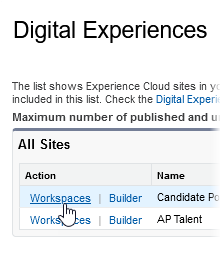
Go to Setup > Feature Settings > Digital Experiences > All Sites.
-
For the Candidate Experience Portal site select Workspaces:
-
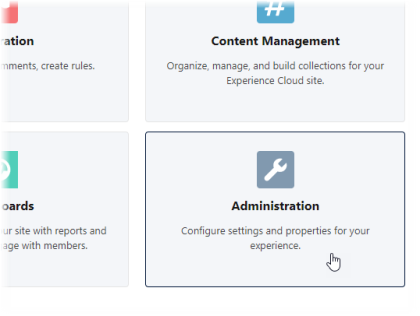
On the Workspaces page select the Administration tile:
-
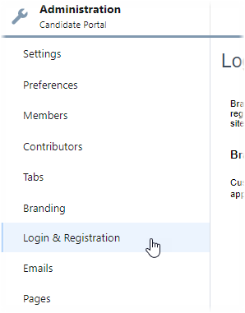
Select Login & Registration:
-
Under Branding Options, complete the fields as follows:
Field What to enter Logo Type Select File or URL Logo File/Logo URL Your logo appears at the top left of the login page. Logos should be maximum 250px wide and 125px high.
If you are using a logo file, select Choose file to upload your own logo. Uploaded logo images should be in JPG, GIF or PNG format, 100KB maximum
If you are using a URL, enter the URL of the logo image. The image is loaded from the URL you have selected when the page is viewed.
Background Type Select Color or Image URL Background/ Background Image URL Enter a HEX value or use the color picker to select the color of the login button.
If you are using a background image URL, enter the URL of the background image.
Login Button Enter a HEX value or use the color picker to select the color of the login button. Right Frame URL A right-frame URL displays content in an iframe on the right side of the login and registration pages. This can be used to display brand messages or other content.
Enter a URL for content that is displayed in the iframe.
Footer Text Text that is displayed at the bottom of the default login and registration pages. Up to 120 characters. -
Set the Logout Page URL if you want to display a custom web page when users log out.
Full URL Enter the complete URL of a web page that loads when the user logs out. If no URL is set, users return to the login page.
-
Select Save.