Creating the Docusign app
You've created the new integration app in your development environment and migrated into production successfully. Now you create the Docusign App to continue the connection to Sage.
Resolution
-
Log into Docusign Admin in your Production account.
-
Got to Apps & Keys.
-
Select the app you migrated. Click Actions, then click Edit.
-
Set Is your application able to securely store a client secret? to Yes.
-
Select Third Party Integration.
-
Select Require Proof Key for Code Exchange (PKCE).
-
Click Add Secret Key and copy it straight away into a Notepad document. Clearly label it. The secret key shows only once.

-
Save the Notepad text file as Docusign IDs locally.
-
Click Generate RSA.
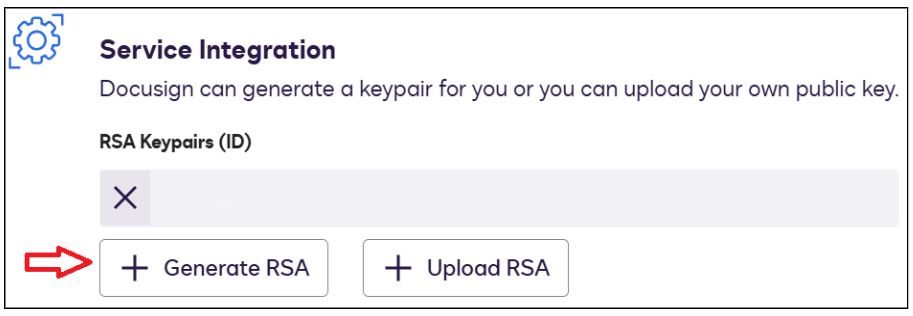
After generating the RSA keypair, you’ll need to manually copy the private key into its own file exactly as it is. Don't change anything.
-
In the RSA keypair window, find the Private Key section.
-
Copy the entire Private Key and paste it into a new Notepad file.
-
Save the file as private.key.
-
Save as type: All Types
-
-
Make sure the filename matches exactly. You'll need this for later steps.
It's essential you save the private.key with the .key file extension and as All Types. Don't save it as a Text document.
Using the correct file type ensures the key can be uploaded and read properly during the integration process.
Adding the redirect URIs
Salesforce generates several URLs automatically that you’ll need for the integration. These URLs are stable, consistent, and predictable. This means you can add them to the Redirect URIs in your Integration App in Docusign before we create the Authentication Provider in Sage People.
Below are examples of the URLs you'll need to add to the Integration App in Docusign. Note ‘’sage69’’ is a generic Sage People trial org used for illustration. All elements of the URL that follow are always the same.
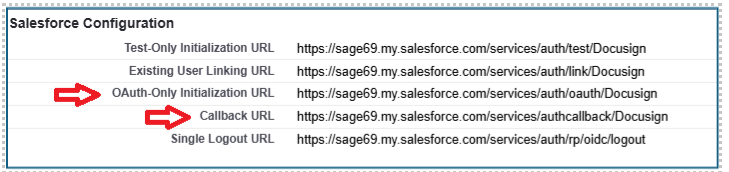
You'll need to add these two URLs to your Docusign account, ensuring the URL reference your My Domain.
-
Go to Apps & Keys in your Docusign Production account.
-
Click Your App, then click Edit.
-
Select Additional Settings, then click Redirect URIs.
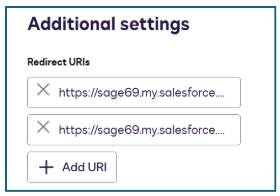
URI format
The URI format is as follows:-
https://your-orgs-my-domain.my.salesforce.com/services/auth/oauth/DocusignServer
https://your-orgs-my-domain.my.salesforce.com/services/authcallback/DocusignServer
You need to replace your-orgs-my-domain with your own My Domain. Everything else in the URIs can remain the same. If you're unsure what your My Domain is, you can find it in Setup then My Domain inside your Sage People org.
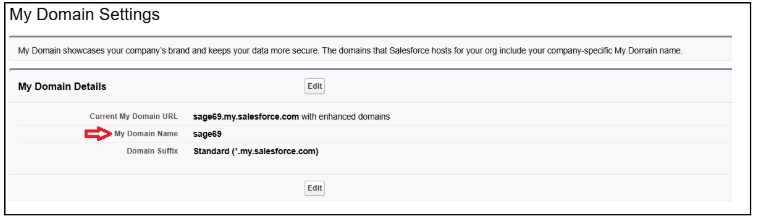
Once you've added the URIs, Save the Integrated App at the bottom of the screen. Then return to Apps & Keys.