Auto-populate Days/Hours on absence records
Understand how to auto-polulate Days/Hours on absence records in Sage.
Resolution
Step 1 - Understand the standard behavior
When you create a new absence in the HR portal, the system doesn't populate the Days/Hours by default.
If the reason you select in part of the team member's Absence Accrual Pattern, saving the record populates Calculated length. The system does this using the contracted days or hours for the dates you select.
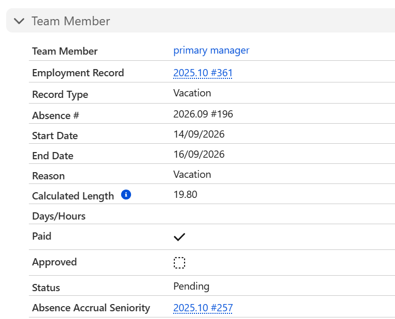
Without automation, you can copy the calculated value into Days/Hours, or enter an override.
Step 2 - Configure the record-triggered flow
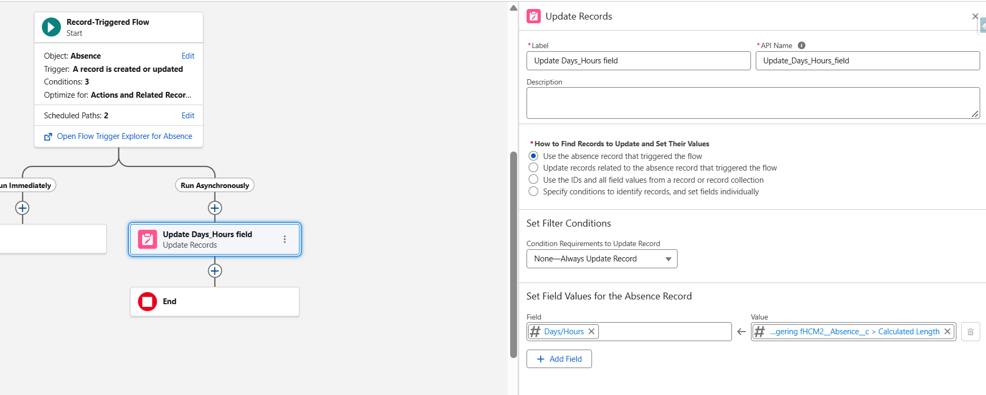
Use a record-triggered flow on the Absence object to copy Calculated Length into Days/Hours after you save the absence.
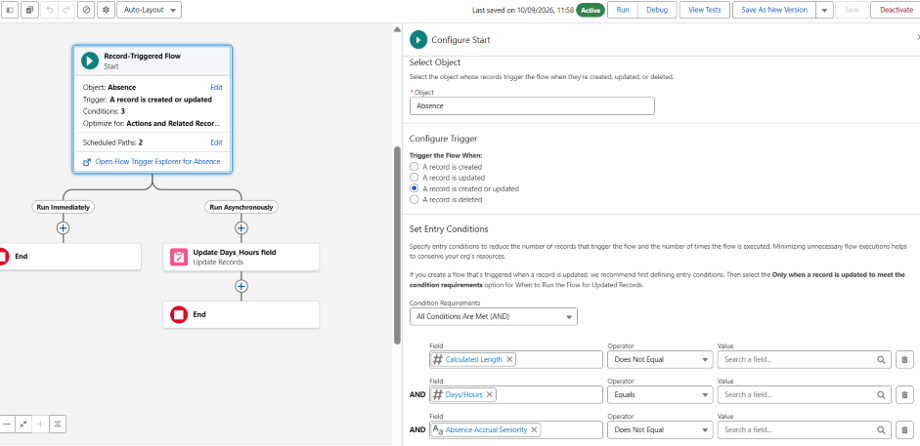
| Setting | Configuration |
|---|---|
| Object | Absence. |
| Trigger | When you create or update a record. |
|
Entry conditions |
Calculated Length isn't null, Days/Hours isn't equal to Calculated Length, and Absence Accrual Seniority isn't null. |
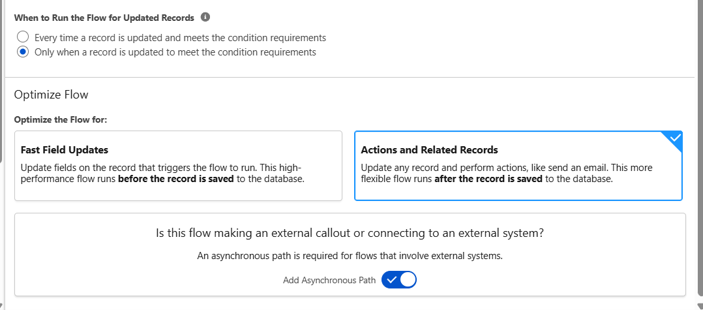
| Updated record behavior | Run only when you update a record to meet the condition requirements. |
| Optimization | Actions and Releated Records, with the asynchronous path enabled as shown. |
Step 3 - Updates the Days/Hours field
Add an Update Records element and use the triggering Absence record. Set Days/Hours to the Calculated Length value from that record.
Step 4 - Confirm the result
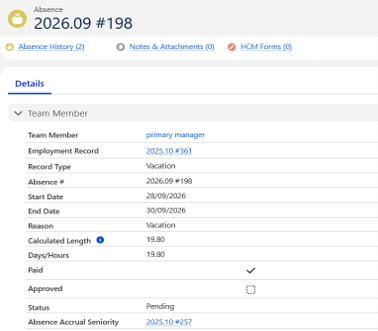
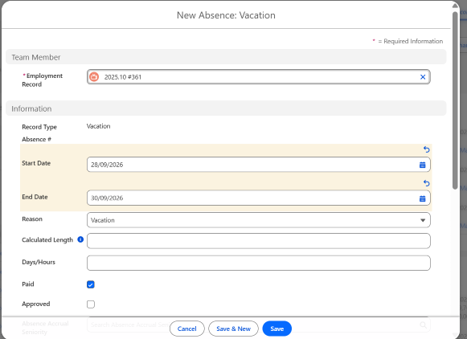
Create and save an absence that meets the entry conditions. Confirm the system has populated the Calculated Length and that the flow copies the same value into Days/Hours.
Before Save:
After Save: